

A broken or glitchy monitor stops your whole day cold. Black screens, flickering, fuzzy text, weird colors — these problems feel intimidating, but most have simple causes you can solve yourself. You don’t need a technician or a repair bill. You need a plan.
Learning how to fix computer monitor display issues saves you money and gets you back to work fast. Many faults come down to a loose cable, a wrong setting, or a tired power supply. Once you know where to look, the fix often takes minutes.
This guide walks you through the exact steps to diagnose and repair the most common monitor display problems at home, using basic tools and clear instructions you can follow with confidence.
Why Fixing Your Computer Monitor Display Matters
A working monitor protects your time, your wallet, and your eyes. Replacing a screen costs real money. Repairing one often costs nothing.
Most display faults are not hardware failures. They’re loose connections, outdated drivers, or settings that drifted out of place. When you can spot the difference, you avoid throwing out a screen that still has years left in it.
There’s also a comfort factor. A flickering or dim display strains your eyes and slows you down. Fixing it sharpens your daily work and protects your focus.
Beyond that, you build a skill. Once you understand how a monitor connects and communicates with your computer, you can troubleshoot other devices too. That confidence pays off every time something on your desk stops behaving.
Tools and Materials You’ll Need
Gather these before you start. Each one helps you isolate the problem fast:
- Spare display cable — HDMI, DisplayPort, or VGA to test for a faulty connection
- Microfiber cloth — to clean the screen and connector pins
- Compressed air can — to clear dust from ports and vents
- Small screwdriver set — for opening the stand or rear panel if needed
- Second monitor or known-good device — to confirm whether the fault is the screen or the computer
- Notepad — to track settings and changes as you test
- USB drive with updated drivers — (optional) for fast reinstalls when the internet is down
Keep your workspace well-lit. Good lighting helps you spot bent pins, frayed cables, and dust buildup that often cause display trouble.
Step-by-Step Guide to Fix Your Monitor Display
Step 1 – Check the Power Connection
Start with power. A dead screen often means a loose or failed power link, not a broken panel.
Press the monitor’s power button and watch for the LED indicator. A solid light means power is reaching the unit. A blinking or dark light points to a supply problem.
Trace the power cable from the wall to the monitor. Push both ends in firmly until you feel a click. Try a different wall outlet to rule out a dead socket, and listen for any faint buzz from the adapter.
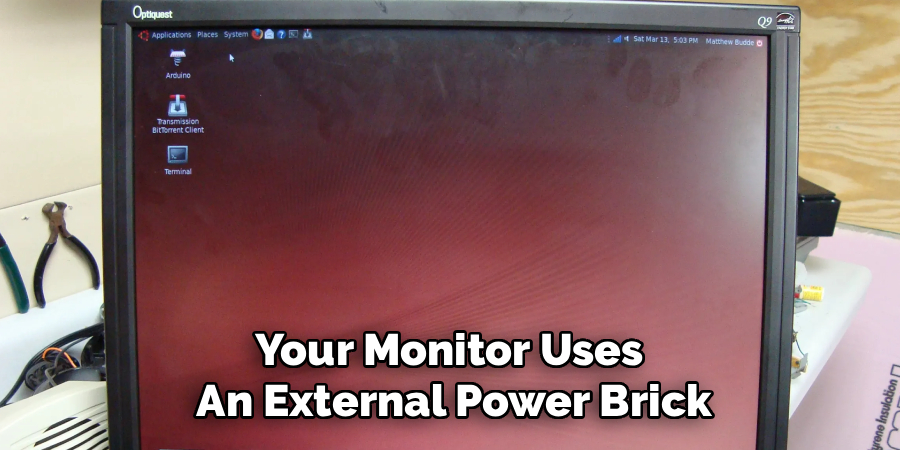
If your monitor uses an external power brick, touch it after a few minutes. A cold brick usually means no power is flowing through it. Swap it with a spare if you have one.
Step 2 – Inspect the Video Cable
A loose or damaged video cable causes more display faults than any other issue. This is the first place to look when learning how to fix computer monitor display problems.
Unplug the HDMI, DisplayPort, or VGA cable from both ends. Run your fingers along its length, feeling for kinks, cuts, or crushed sections. Look closely at the connector pins under good light.
Wipe the connector with a microfiber cloth, then push it back in until it seats fully. A secure cable often clicks or sits flush against the port.
If the screen stays black, swap in your spare cable. A working spare instantly tells you the old one failed. Cables wear out quietly, so replacing them is cheap insurance.
Read More: How To Repair Gaming Console.
Step 3 – Confirm the Correct Input Source
Monitors with multiple ports can sit on the wrong input. The screen looks dead, but it’s just listening to the wrong channel.
Find the input or source button on your monitor — usually on the bottom edge or side. Press it to cycle through HDMI 1, HDMI 2, DisplayPort, and VGA.
Watch the screen as you switch. The moment you land on the active input, your desktop snaps into view. You’ll often hear a soft beep or see an on-screen label confirming the change.
If you recently plugged into a new port, this single step fixes the problem. Match the input setting to the physical port your cable uses, and the picture returns instantly.
Step 4 – Test With a Second Device
You need to know whether the fault lives in the monitor or the computer. A second device answers that fast.
Connect your monitor to a laptop, game console, or another computer using the same cable. If the picture appears clearly, your monitor works fine — the problem is your original computer.
If the screen stays black or glitchy on every device, the monitor itself needs attention. This test saves hours of guessing.
You can flip the logic too. Plug your computer into a different, known-good screen. A clean picture there confirms your computer’s video output works, narrowing the fault back to the original monitor.
Read More: How to Repair HDMI Cable Issues.
Step 5 – Update or Reinstall Display Drivers
Corrupt or outdated graphics drivers cause flickering, wrong resolutions, and blank screens. Fresh drivers often clear these up in one pass.
Boot into Safe Mode if the picture is unstable. Open your computer’s Device Manager, find the Display Adapters section, and right-click your graphics card.
Choose to update the driver, then let the system search automatically. For stubborn faults, uninstall the driver completely and restart. Your computer reinstalls a clean version on reboot.
You can also download the latest driver straight from your graphics card maker. Keep that USB drive handy if your connection is spotty. Watch the screen flicker once during install — that flash usually means the new driver took hold.
Step 6 – Adjust Resolution and Refresh Rate
A wrong resolution makes text fuzzy and images stretched. A mismatched refresh rate causes flicker that tires your eyes.
Right-click your desktop and open Display Settings. Set the resolution to the value marked “Recommended” — this matches your monitor’s native sharpness.
Next, open Advanced Display Settings and check the refresh rate. Set it to your monitor’s rated value, often 60Hz, 120Hz, or 144Hz. The picture should steady the moment you apply the change.
If the screen goes black after a change, wait fifteen seconds. The setting reverts on its own if you don’t confirm it. This safety window lets you experiment without locking yourself out of a usable display.
Step 7 – Clean the Ports and Screen
Dust and grime cause weak connections and false faults. A quick cleaning often restores a flickering or dim display.
Power down the monitor and unplug it fully. Aim short bursts of compressed air into each port to clear dust and lint from the pins.
Wipe the screen gently with a dry microfiber cloth, moving in small circles. Never spray liquid directly onto the panel — it can seep behind the glass and cause permanent damage.
Check the connector pins one more time for dust or bent metal. A clean, snug connection carries a stronger signal, and you’ll often see colors brighten and sharpen once the path is clear.
Step 8 – Reset the Monitor to Factory Settings
When settings drift, colors warp and brightness swings wildly. A factory reset wipes those changes and returns a known-good baseline.
Open the monitor’s built-in menu using the physical buttons. Navigate to the System, Setup, or Settings section, then find the “Factory Reset” or “Reset All” option.
Confirm the reset. The screen blinks, and every setting — brightness, contrast, color, and input — returns to its default state. This clears bad presets and gaming modes that distort the picture.
After the reset, your display should look balanced and clear. Re-adjust brightness and contrast to your taste, but make these changes one at a time so you can track which setting affects what.
Critical Mistakes When Fixing a Monitor Display
Rushing the diagnosis wastes the most time. Many people assume the panel is dead and order a replacement before checking the cable or power. Work through the simple causes first — loose connections, wrong input, tired power brick. The expensive fix should always be your last guess, not your first.
Forcing connectors is another common error. When a cable won’t seat, people shove it in at an angle and bend the pins. A bent pin breaks the signal path and can damage the port permanently. Align the connector squarely and apply gentle, even pressure. If it resists, stop and check the orientation.
Skipping driver checks leads to false conclusions. A flickering screen often points to software, not hardware, yet people open the monitor’s casing chasing a fault that a driver update would have cleared in minutes. Always rule out drivers before reaching for a screwdriver.
Finally, many spray cleaner straight onto the screen. Liquid runs behind the bezel and pools against the panel, causing dark spots and dead pixels. Spray the cloth, not the glass. And never open a monitor while it’s plugged in — capacitors hold a dangerous charge long after the power is off.
Expert Tips
Test changes one at a time. When you swap a cable, update a driver, and reset settings all at once, you never learn which fix worked. Make a single change, check the result, then move on. This habit turns guessing into diagnosis.
Keep a spare cable in your desk drawer. Cables fail more often than panels, and a tested backup turns a frustrating outage into a thirty-second fix.
Label your inputs. If your monitor has two HDMI ports, note which device connects to each. You’ll never chase a “dead screen” that’s just the wrong input again.
Write down your working settings — resolution, refresh rate, and brightness. If a problem returns later, you’ll restore the correct values in seconds instead of starting over.
Frequently Asked Questions
Why is my monitor screen black but the power light is on?
A lit power light with a black screen usually means the monitor receives power but no video signal. Check these first:
- The video cable — reseat it at both ends or swap in a spare
- The input source — cycle through the ports until your desktop appears
- The computer — confirm it’s powered on and not stuck in sleep mode
Test the monitor with a second device to confirm whether the panel or the computer is at fault.
How do I fix a flickering monitor display?
Flickering most often comes from a loose cable or a mismatched refresh rate. Reseat the video cable firmly at both ends. Then open Display Settings and set the refresh rate to your monitor’s rated value. If the flicker continues, update your graphics drivers. A failing power supply or a damaged cable can also cause flicker, so swap each one to isolate the culprit.
Can I repair a cracked monitor screen myself?
A physically cracked panel is rarely worth repairing at home. Replacement panels often cost nearly as much as a new monitor, and the swap requires precise disassembly. Minor issues like dead pixels sometimes respond to gentle pressure or pixel-fixing software. But for visible cracks or spreading dark spots, replacing the monitor is usually the faster, cheaper choice.
Why does my monitor show fuzzy or blurry text?
Blurry text almost always means the wrong resolution. Right-click your desktop, open Display Settings, and select the resolution marked “Recommended.” This matches your monitor’s native pixel count for the sharpest image. Also check that your cable is fully seated, since a weak signal softens the picture. For VGA connections, switching to HDMI or DisplayPort delivers a noticeably crisper result.
How often do monitor cables go bad?
Quality cables last for years, but daily bending, pulling, and tight desk routing wear them down faster. Connectors loosen, internal wires fray, and pins corrode over time. If your display flickers, drops out, or shows artifacts, the cable is a likely suspect. Keep a tested spare on hand and replace any cable that shows visible damage or causes intermittent signal loss.
Conclusion
A faulty monitor display feels like a major problem, but the fix is usually small. Start with power, then the cable, then the input. Test with a second device, update your drivers, and dial in the right resolution and refresh rate. Clean the ports, and reset to factory settings when nothing else works. Each step rules out a cause and brings you closer to a clear picture.
The real skill is patience. Change one thing at a time, track what works, and keep a spare cable ready. Most display faults come down to a loose connection or a stray setting — not a dead screen. That means you can solve them yourself, today, without a repair bill.
Now you know how to fix computer monitor display problems from start to finish. Bookmark these steps, run through them in order the next time your screen acts up, and you’ll get back to a sharp, steady display in minutes. Trust the process, and trust your own hands.