

Few things sting like settling in for game night, hitting the power button, and getting nothing. No light, no startup chime, no glowing menu. Maybe your console roars like a jet engine, freezes mid-match, or refuses to show a picture on the TV.
Here’s the good news: many of these problems come from dust, loose cables, or simple software hiccups, not dead hardware. You can fix a lot of them yourself in under an hour, with basic tools and a little patience.
Learning how to repair gaming console issues saves you money, keeps your game system running longer, and builds real troubleshooting confidence. This guide walks you through safe, beginner-friendly diagnosis, simple fixes, and careful testing so you can get back to playing fast.
Why Learning To Repair A Gaming Console Matters
Knowing your way around device care makes you genuinely self-reliant at home. When your console acts up, you won’t feel stuck waiting on a repair shop or a pricey replacement. You’ll know where to look first.
This skill builds habits that carry over. The same calm approach, unplug it, check the obvious, work step by step, helps with phones, laptops, and other electronics. You stop panicking when a gadget misbehaves.
There’s a clear money angle too. Blowing out dust or reseating an HDMI cable costs you minutes, while a service fee or a new console costs real cash. Whether you own or rent, handling small console repair tasks keeps your gear alive longer and out of the landfill. That practical independence feels great, and it makes you the person friends call when their system quits.
Tools and Materials You’ll Need
Gather your supplies before you open anything up. Having everything within reach keeps the job smooth and safe:
- Compressed air (canned or a low-power electric blower) for dust buildup
- Soft microfiber cloths to wipe vents and surfaces
- Small Phillips and security screwdrivers sized to your game system
- Anti-static wrist strap to protect sensitive parts
- Plastic pry tools or spudgers to open the case without scratches
- Cotton swabs and isopropyl alcohol (90%+) for gentle spot cleaning
- A spare HDMI cable and power cable for quick swap testing
- Tweezers for stray dust or debris
- A small bowl or tray to hold screws as you go
- Optional: a tube of fresh thermal paste if you plan to clean and reseat the heat sink
Work on a clean, well-lit table so nothing rolls away.
Step-by-Step Guide on How To Repair Gaming Console
Step 1 – Power down and unplug safely
Safety comes first, every single time. Even a small console holds enough charge to hurt you or fry a component.
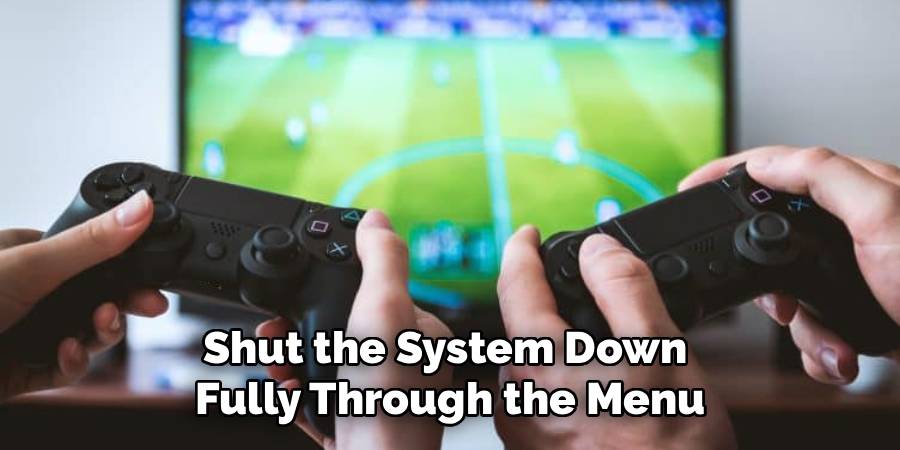
Shut the system down fully through the menu, not just into rest mode. Then pull the power cable from the wall and the back of the unit. Let it sit for a minute so it settles.
Touch a grounded metal object or clip on your anti-static wrist strap before handling anything inside. Static you can’t even feel can kill a circuit board.
If you ever notice a burnt smell, visible corrosion, or signs of liquid damage, stop right here. Those point to deeper trouble. Leave the unit alone and take it to a professional repair technician instead of pushing forward.
Step 2 – Diagnose a console that won’t power on
A dead console feels alarming, but the cause is often simple. Start with the basics before you assume the worst.
Check the power cable at both ends and the wall outlet. Plug a lamp into the same socket to confirm it has power. Try a different outlet and, if you have one, a spare power cable.
Look for any standby light. A faint glow with no startup hints at a software stall, while total darkness suggests a power problem. Hold the power button ten seconds to force a hard reset.
If the unit still shows nothing after a known-good cable and outlet, the internal power supply may have failed. That repair needs a technician, since opening the power supply is dangerous.
Step 3 – Reconnect HDMI and fix display problems
A black screen with a humming console usually means a connection issue, not a broken machine. This fix takes seconds.
Unplug the HDMI cable from both the console and the TV, then press each end back in firmly until it seats. A loose HDMI port connection causes flickering, no signal, or snow.
Swap in a spare HDMI cable to rule out a frayed one. Try a different HDMI port on your TV too, since ports do fail. Confirm the TV is set to the correct input.
Gently inspect the console’s HDMI port with a flashlight. Bent or pushed-in pins inside the port are a known weak spot, and that delicate repair belongs to a professional.
Read More: How to Repair HDMI Cable Issues.
Step 4 – Clear dust buildup and quiet a loud fan
A console that sounds like a hairdryer is usually choking on dust. The cooling fan spins harder to move air through clogged vents, and the noise climbs.
Take the unplugged unit outside or over a trash can. Use short bursts of compressed air across the vents and intake grilles. Hold the cooling fan still with a cotton swab so the air doesn’t spin it too fast and damage it.
You’ll see gray fuzz puff out, and the unit will breathe easier afterward. Wipe the case with a microfiber cloth.
Knowing how to repair gaming console noise this way often solves overheating too. For heavy internal dust, you may need to open the case carefully in the next steps.
Step 5 – Open the case and tackle overheating
If cleaning the outside didn’t quiet the fan or stop shutdowns, deeper dust is the likely culprit. Open the case only if you’re comfortable, and keep your anti-static strap on.
Remove the screws with the right screwdriver and drop them in your tray so none vanish. Lift the panel gently with a plastic pry tool, never forcing plastic clips.
Inside, you’ll spot a blanket of dust on the heat sink and fan blades. Blow it clear with compressed air and lift stubborn clumps with tweezers.
If your model allows, you can clean old, crusty thermal paste off the chip and heat sink, then apply a thin fresh layer. Skip this if you’re unsure, since mistakes here cause overheating.
Read More: How to Repair Burnt Circuit Board.
Step 6 – Resync a stubborn controller
When your controller won’t connect, you don’t need a new one yet. Controller pairing problems are common and usually quick to fix.
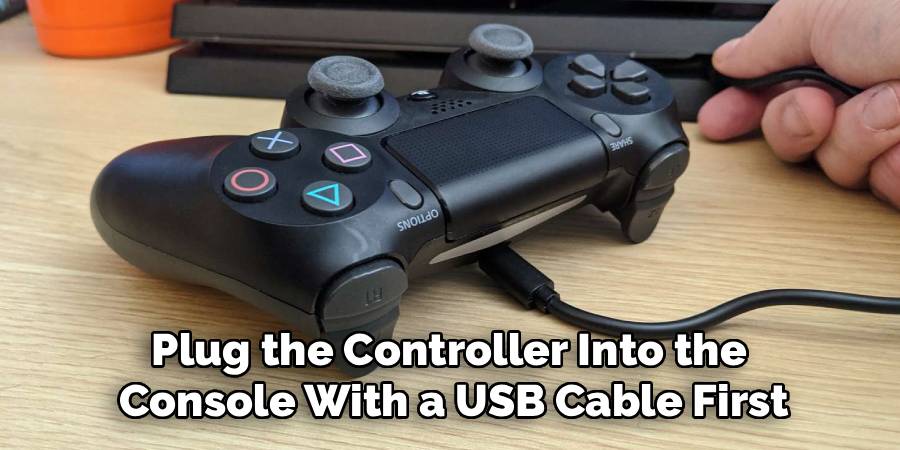
Plug the controller into the console with a USB cable first. A wired link often forces a fresh handshake. Then press the sync button on both the console and the controller, holding until the lights flash and settle.
Fully charged batteries matter, so let it charge twenty minutes if it’s dead. Interference from other wireless gear can also block the signal, so move closer and clear the space.
If a controller still won’t pair after a reset and a wired test, the internal Bluetooth board or the charging port may be failing, which calls for a deeper repair.
Step 7 – Fix storage glitches and stuck updates
Freezing, slow loading, or a frozen update screen often points to software or a full drive, not dead hardware. Back up your saves before you touch anything here.
Start by clearing space. A nearly full hard drive or SSD causes crashes and failed installs, so delete games you’ve finished or move them to external storage.
If a system update hangs, boot into safe mode and restart the update from there. Safe mode also lets you rebuild the database, which clears many performance hiccups without erasing games.
For repeated crashes, a failing drive may be the issue. Swapping in a fresh SSD or hard drive is beginner-friendly on many consoles, but always restore your backed-up saves afterward so nothing gets lost.
Read More: How to Repair Crack in Plastic Bathtub.
Step 8 – Reassemble and test everything
With your work done, it’s time to put the console back together and confirm it runs right. Rushing this step undoes good work, so go slow.
Seat every panel and drive the same screws back into their original holes. Reconnect the HDMI cable and power cable firmly. Remove your anti-static strap once the case is sealed.
Power it on and listen for a smooth startup chime and a quiet fan, not a strained whine. Watch for a clear picture on the TV and test a controller, a game launch, and a few minutes of play.
If it boots cleanly and stays cool, you’re done. If it shuts off, smells hot, or shows corruption, stop and consult a technician before it gets worse.
Critical Mistakes When Repairing A Gaming Console
The most dangerous mistake is working on a console that’s still plugged in. Rest mode isn’t off. Always shut the system down fully and pull the power cable before you open anything, and never pry into the sealed power supply, since it can hold a serious charge even when unplugged.
Another common slip is skipping static protection. Your body carries static you can’t feel, and a single spark can quietly kill the motherboard or a memory chip. Clip on an anti-static wrist strap or at least ground yourself on bare metal before touching internal parts. This tiny habit saves expensive components.
People also forget to back up their saves before storage fixes or drive swaps. Rebuilding the database or replacing a hard drive can wipe data, and lost progress hurts. Copy your saves to external storage or the cloud first, every time.
Finally, many folks push forward when the signs scream “stop.” A burnt smell, visible corrosion, or liquid damage means the repair has moved beyond simple cleaning. Forcing a startup, applying sloppy thermal paste, or attempting soldering without skill can destroy the board entirely. When you spot those red flags, unplug it and hand it to a professional repair technician.
Expert Tips
Blow out dust every three to six months, and more often if you have pets or game in a carpeted room. Clean vents do more to prevent overheating than almost any other habit.
Give your console four to six inches of breathing room on every side. Stuffing it inside a tight cabinet traps heat and shortens its life fast.
Keep one spare HDMI cable and power cable in a drawer. Swap testing is the quickest way to rule out a bad cable before you blame the hardware.
Label your screws by size as you open the case, using a tray or strips of tape. Mixed-up screws cause cracked plastic and stripped threads during reassembly.
Update your games and system software regularly. Many freezes and glitches vanish with a patch, no screwdriver required.
Frequently Asked Questions
Why does my gaming console keep overheating and shutting off?
Overheating usually traces back to blocked airflow. Heat builds until the system shuts down to protect itself. Check these first:
- Heavy dust buildup on the cooling fan and vents
- The console crammed in a tight cabinet
- Dried-out thermal paste on the chip
- Direct sunlight or a warm room
Blow out the dust, give it open space, and let it cool fully. If it still overheats after cleaning, the heat sink or internal cooling may need professional service.
How do I fix a black screen when the console is on?
A black screen with a running console is almost always a connection problem. Unplug the HDMI cable from both ends and reseat it firmly, then test a spare HDMI cable and a different HDMI port on your TV. Confirm the TV is on the right input. If the picture stays black across cables and ports, the console’s HDMI port may have bent pins and need a technician.
Can I replace the hard drive myself?
Yes, on many consoles a hard drive or SSD swap is beginner-friendly and a great way to add storage. Power down, unplug, and use an anti-static strap before you start. Back up your saves to external storage or the cloud first, since the swap erases the old drive. After installing the new drive, reinstall the system software and restore your saves to pick up right where you left off.
Why won’t my controller connect to the console?
Controller pairing problems usually come from a drained battery or a lost connection. Plug the controller in with a USB cable to force a wired handshake, then press the sync button on both the controller and console until the lights settle. Charge it fully and move away from other wireless devices. If it still won’t pair after a reset, the internal board or charging port may be failing.
Is it worth repairing a console with liquid damage myself?
No, liquid damage is one repair to leave alone. Liquid causes corrosion that spreads across the motherboard, and visible green or white crust means the harm is already deep. Powering it on can short the board completely. Unplug it immediately, don’t try to dry it with heat, and take it to a professional repair technician who can clean the board safely and assess what’s salvageable.
Conclusion
A console that quits doesn’t have to end your game night or drain your wallet. Most problems trace back to a handful of familiar causes, and you now have a clear road map to handle them. Power down, unplug, ground yourself against static, and work through each fix calmly and safely.
Remember the rhythm: check the power cable and outlet, reseat the HDMI cable, blow out dust buildup, quiet the cooling fan, resync the controller, and clear storage glitches in safe mode. Always back up your saves first, then reassemble carefully and test before you celebrate.
Know your limits too. A failed power supply, motherboard damage, burnt components, liquid damage, or anything needing soldering all belong to a professional repair technician. And if you ever catch a burnt smell or spot corrosion, stop and get help.
Now that you understand how to repair gaming console problems the right way, you can tackle a loud fan or a black screen with real confidence. Grab your tools, unplug the unit, and get back to playing.