

You plug in your flash drive, expecting your files to pop right up, but nothing happens. No window opens, no drive letter appears, and that sinking feeling sets in as you wonder where your photos, documents, or work files went.
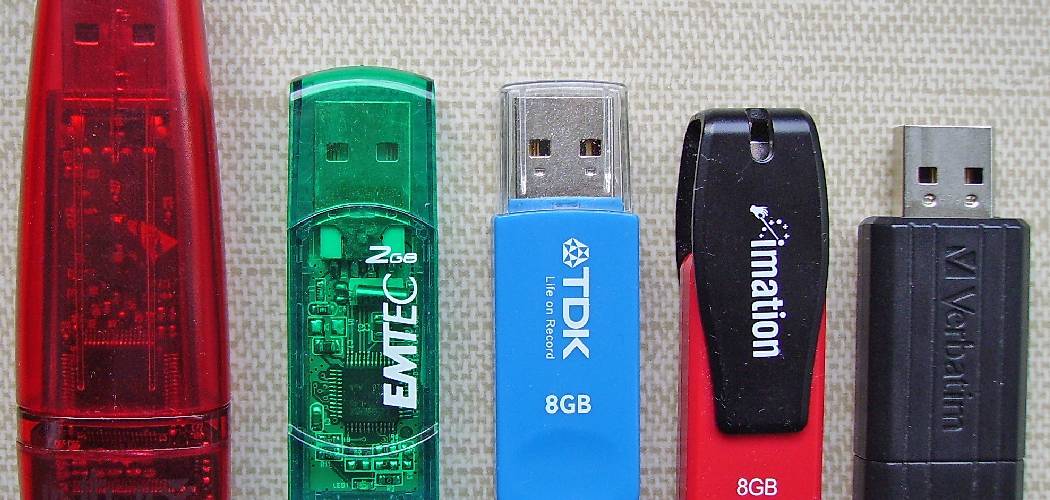
Take a breath. A drive that won’t read is often still alive, just confused. The problem can be as simple as a loose connector, a missing drive letter, or a software hiccup your computer can clear up in minutes.
Learning how to fix a flash drive that won’t read saves you money and, more importantly, can rescue files you thought were gone for good. This guide walks you through every step, from checking your USB port to using disk management, so you can troubleshoot calmly and get your storage device working again.
Why Fixing an Unreadable Flash Drive Matters
A flash drive holds a surprising amount of your life. Tax documents, family photos, school projects, and backups all live on that tiny stick of removable storage. When it stops reading, panic feels natural.
For homeowners, renters, and DIY enthusiasts, knowing the fix means no expensive recovery service and no waiting days for help. Most issues come down to a few simple troubleshooting steps you can handle at your kitchen table.
Campers and outdoor beginners feel the payoff too. Trip itineraries, offline maps, packing checklists, and important documents often ride along on a USB stick when you’re off the grid. A drive that won’t read at a remote cabin can leave you stranded without your plans. Knowing how to coax it back to life keeps your information close, turning a stressful dead end into a quick, confident fix wherever you happen to be.
Tools and Materials You’ll Need
You won’t need a workbench full of gear for this one. Most of these tools are already sitting on your desk or in a drawer nearby.
- A working computer (laptop or desktop) to test the drive on a fresh system
- A second USB port or a different computer to rule out a bad port
- A can of compressed air to clear dust from the connector and the laptop port
- A soft cloth or cotton swab to gently clean the metal contacts
- Recovery software such as a free file-recovery tool for pulling off corrupted data
- A second storage device to hold any rescued files as a fresh data backup
- A USB hub or extension cable (optional, but handy for testing power supply and connection issues)
That USB hub is a small convenience that lets you try different power and connection setups without crawling under your desk.
Step-by-Step Guide on How to Fix a Flash Drive That Won t Read
Work through these eight steps in order. Start simple and only move to the deeper software fixes if the easy checks don’t solve it. Patience here protects your data.
Step 1 – Try a Different USB Port and Computer
Before you blame the drive itself, rule out the obvious. Pull the flash drive out and plug it into a different USB port on the same machine. You’ll often hear that familiar chime when it connects properly.
If nothing happens, try a completely different computer. A friend’s laptop or a desktop computer at home works fine for this test. A port can wear out, lose power, or collect grime over time.
This quick swap tells you a lot. If the drive reads on another machine, your original USB port is the culprit, not the stick. Knowing how to fix a flash drive that won t read often starts with this five-minute check that saves you from chasing the wrong problem.
Step 2 – Inspect and Clean the Connector
Look closely at the metal connector on the end of your USB stick. Hold it under good light and check for dust, lint, or bent pins inside the housing. Pocket lint and grime build up faster than you’d think.
Grab your can of compressed air and give the connector a short, firm blast. You’ll see tiny specks scatter free. Then gently wipe the metal contacts with a dry cotton swab or soft cloth.
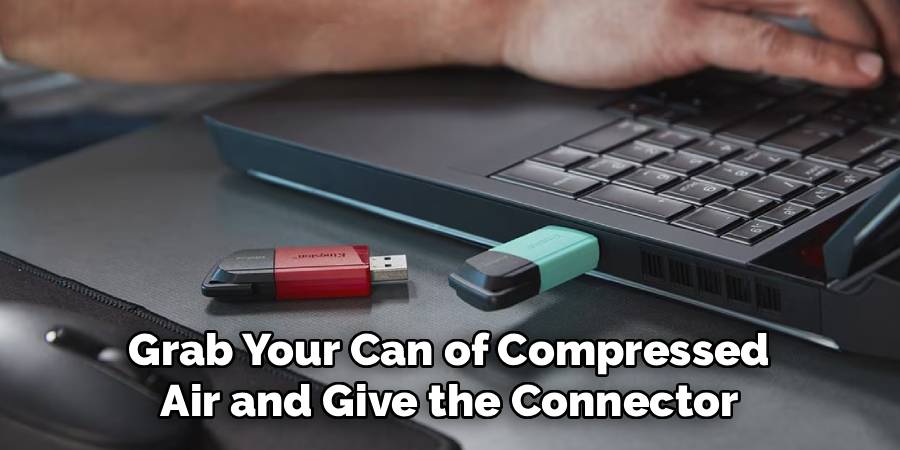
Never use water or harsh cleaners here. A clean, dry connection often restores a solid link between the drive and the laptop port. Once it looks spotless, plug it back in and listen for the connection sound that tells you the contact is finally solid again.
Step 3 – Check Disk Management for the Drive
If your drive doesn’t show up in file explorer, it might still appear in disk management. On Windows, right-click the Start button and open Disk Management. Watch for a removable storage entry that matches your drive’s size.
Sometimes the drive shows up here but has no drive letter assigned, which is why it stays invisible elsewhere. You’ll see a bar representing the storage device, even when nothing pops up in your normal folders.
This tool gives you a behind-the-scenes view of every connected disk. If your flash drive appears in this list, that’s great news. It means the hardware still works, and you’re likely facing a simple software fix rather than a dead stick.
Step 4 – Assign a New Drive Letter
When the drive shows in disk management but won’t open, a missing drive letter is often the cause. Your computer recognizes the hardware but doesn’t know how to label it for everyday use.
Right-click the drive’s bar in disk management and choose “Change Drive Letter and Paths.” Click Add, then pick an unused letter from the dropdown menu. Confirm your choice and watch the screen update.
In many cases, the drive springs to life the moment you do this. Open file explorer and look for your newly lettered drive. This small adjustment fixes a surprising number of read errors, and it costs you nothing but a couple of clicks and a little curiosity.
Step 5 – Update or Reinstall the Driver in Device Manager
A glitchy driver can keep an otherwise healthy drive hidden. Open Device Manager and expand the “Disk drives” or “Universal Serial Bus controllers” section. Look for your USB stick, which may show a small warning icon.
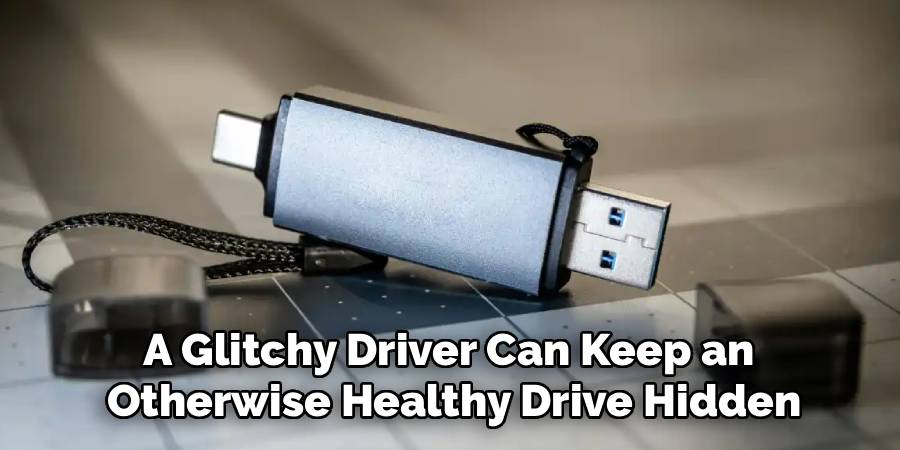
Right-click the entry and select “Update driver,” then let Windows search automatically. If that doesn’t work, choose “Uninstall device,” unplug the drive, and restart your computer. Windows reinstalls a fresh driver when you plug it back in.
You’ll often feel relief as the drive reappears with a clean software connection. Drivers quietly manage how your computer talks to removable storage, and a corrupted one creates read errors that look far scarier than the simple reset they actually need.
Step 6 – Run a Disk Check for Errors
If the drive shows up but throws errors, a built-in repair tool can patch the file system. Open file explorer, right-click your drive, and choose Properties. Head to the Tools tab and click the Check button under error checking.
Let the scan run fully without yanking the drive out. You’ll see a progress window as it hunts for corrupted data and bad sectors. The process can take a few minutes depending on the drive size.
When it finishes, try opening your files again. This scan repairs minor file system glitches that block access without harming your data. Learning how to fix a flash drive that won t read often comes down to letting this quiet little tool do its careful work.
Step 7 – Recover Your Files With Recovery Software
If your files still hide, turn to recovery software before doing anything drastic. Download a trusted free recovery tool, install it on your computer, and point it at the troubled storage device.
Let the program scan the drive completely. You’ll watch a list of recoverable files slowly fill the screen, sometimes including documents you forgot you had. Look carefully for hidden files the drive stopped displaying on its own.
When the scan finishes, save the recovered files to a second drive, never back onto the failing one. This protects your data during the rescue. Recovery software reads past surface damage and pulls your precious files to safety, giving you a solid data backup before you attempt any deeper repair.
Step 8 – Format the Drive as a Last Resort
Formatting wipes everything, so only reach this step after you’ve recovered your files. With your data safely backed up, right-click the drive in file explorer and choose Format.
Pick a file system like exFAT or FAT32, leave the quick format box checked, and click Start. You’ll see a brief progress bar, then a message confirming the job is done.
Formatting rebuilds the drive’s file system from scratch, clearing out deep corruption that simpler fixes can’t touch. Once it finishes, the drive should read normally and accept new files without complaint. Test it by copying a small file over and opening it. A clean, working drive means your patience paid off and the stick lives to serve another day.
Critical Mistakes to Avoid When Fixing an Unreadable Flash Drive
A few common slip-ups can turn a fixable drive into a lost cause, so let’s clear them up before you dive in.
The biggest mistake is formatting too soon. Many people panic, see the “format this drive” prompt, and click it without thinking. That wipes your files instantly. Always try recovery software first and back up everything you can before formatting anything.
Another error is ignoring the simple checks. Folks jump straight to complicated software fixes when a different USB port or a quick connector cleaning would have solved it. Start with the easy stuff and work deeper only if you must.
Pulling the drive out mid-scan causes real harm too. When a disk check or recovery scan runs, yanking the storage device can corrupt the file system further or damage files in progress. Let every process finish completely before you unplug.
People also save recovered files back onto the same failing drive. That overwrites the very data you’re trying to rescue. Always copy rescued files to a separate, healthy storage device instead.
Finally, don’t force a bent connector into a port. Pushing hard on a damaged USB stick can break the contacts entirely and end any chance of recovery.
Expert Tips
A few smart habits make these repairs smoother and protect you down the road.
First, keep regular backups of important files in two places, like a second drive and a cloud account. A reliable data backup means a dead flash drive becomes a minor annoyance instead of a disaster.
Second, label your drives and avoid carrying them loose in pockets or bags. Lint and pressure damage the connector over time, leading to the very read errors you’re now fixing.
Third, eject your drive properly every time instead of yanking it out. A safe removal lets the file system close cleanly and prevents corrupted data.
Finally, when troubleshooting, change just one thing at a time. Swap the port, then test. Clean the connector, then test. This patient approach shows you exactly which fix worked, so you’ll know what to do if the problem ever returns.
Frequently Asked Questions
Why does my flash drive show up but won’t open?
This usually points to a file system or drive letter problem rather than dead hardware. The good news is the drive is alive. Try these quick checks:
- Assign a drive letter in disk management if one is missing
- Run an error check through the drive’s Properties menu
- Update the driver in device manager
If those fail, use recovery software to pull your files before formatting.
Can I recover files from a drive that won’t read?
Often, yes. As long as the connector and chip aren’t physically destroyed, recovery software can scan past surface corruption and pull your files to safety. Download a trusted tool, scan the troubled storage device, and save anything it finds to a separate drive. Never save recovered files back onto the failing stick, since that can overwrite the very data you’re trying to rescue.
Will formatting fix my unreadable flash drive?
Formatting can fix deep file system corruption, but it erases everything on the drive. Treat it as a last resort. Always run recovery software and back up your files first. Once your data is safe, format the drive using exFAT or FAT32 with a quick format. After it finishes, copy a small test file over to confirm the drive reads and writes properly again.
How do I know if my USB port or the drive is the problem?
Test the drive on a different port and a different computer. If it reads fine elsewhere, your original USB port is the culprit, and a quick cleaning or a different port solves it. If the drive fails everywhere you plug it in, the stick itself is the issue, and you’ll want to focus your troubleshooting steps on the drive rather than the computer.
Why does my drive keep disconnecting and reconnecting?
This stutter usually signals a loose connector, a weak power supply, or a failing driver. Try a different USB port directly on the desktop computer instead of a hub. Clean the metal contacts with compressed air, and reinstall the driver in device manager. If the dropping continues across multiple machines, the drive’s internal connection may be damaged, so recover your files promptly.
Conclusion
A flash drive that won’t read feels like a locked door between you and your files, but you’ve seen it’s often just a small glitch waiting for the right nudge. Most fixes take only minutes and cost nothing but a little patience.
Start with the simple checks: try another USB port, clean the connector, and look for the drive in disk management. Assign a fresh drive letter, update the driver, and run a disk check to clear file system errors. If your files still hide, lean on recovery software to rescue them, and save formatting for a true last resort once your data is safe.
Respect your data, work one step at a time, and never wipe the drive before backing up. These habits protect your files season after season and save you from costly recovery services.
Now that you know how to fix a flash drive that won t read, you’ve gained a handy skill that rescues photos, documents, and trip files alike. So grab your drive, clear a quiet workspace, and bring your data back to life.