

A stuck sheet of paper can stop your whole day cold, especially when you’re racing to print something important. The good news? You don’t need a technician or a service call to get things moving again. Learning how to repair Canon printer paper jam issues is one of the simplest fixes any homeowner or renter can master at home.
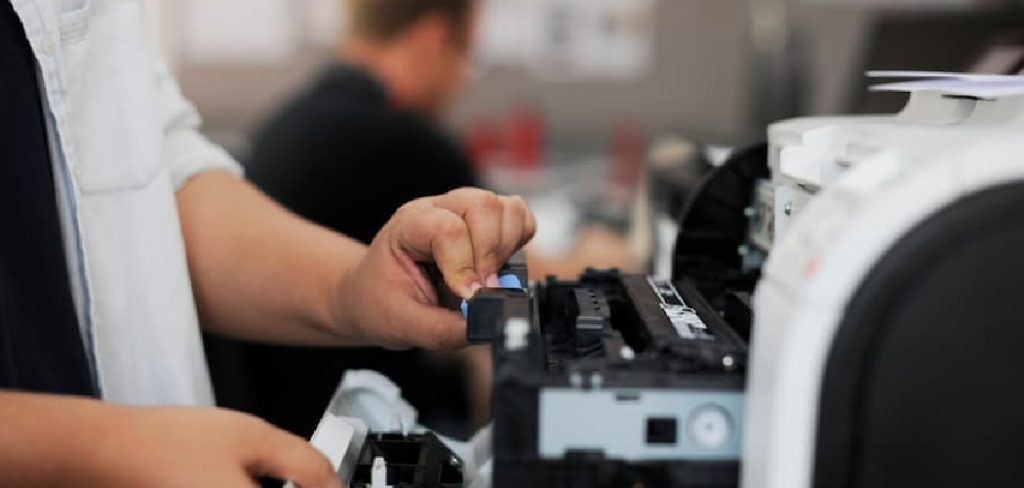
With a calm hand and a few minutes, you can clear the blockage, protect your printer’s delicate parts, and get back to printing clean pages. Most jams happen because of misaligned sheets, worn feed rollers, or stray bits of debris hiding in the paper path. This guide walks you through every step, from prep to prevention, so you can fix the problem yourself with confidence.
Why Fixing a Canon Printer Paper Jam Matters
Knowing how to handle a jam saves you both time and money. A single technician visit can cost more than the printer itself, and shipping a unit off for repair means days without it. For homeowners, renters, and DIY beginners, this is a skill that pays off again and again.
A jam isn’t just an annoyance, either. If you yank paper out the wrong way, you can damage the printer rollers or scratch the cartridge area. That turns a five-minute fix into a real repair bill. Learning the right method protects your machine and keeps it running smoothly for years.
There’s also a quiet satisfaction in solving the problem yourself. Once you understand how the paper moves through your Canon, troubleshooting feels less like guesswork and more like second nature.
Tools and Materials You’ll Need
You won’t need a full toolbox for this job. Most jams clear with simple items you already have around the house. Gather these before you start so you’re not scrambling mid-repair:
- Tweezers or needle-nose pliers – for grabbing small torn scraps
- A flashlight – to spot hidden debris in the paper path
- A soft, lint-free cloth – for wiping down feed rollers
- Distilled water or isopropyl alcohol – to clean sticky rollers gently
- A pair of clean, dry hands – seriously, oils and dust matter
- Cotton swabs – for reaching tight corners around the cartridge area
- A small flashlight headlamp (optional) – frees up both hands and makes the rear tray much easier to inspect
Lay everything on a flat surface near an outlet. Good lighting and a steady setup make the whole process faster and far less frustrating.
Step-by-Step Guide on How To Repair Canon Printer Paper Jam
Step 1 – Power down and unplug the printer
Before you touch anything inside, turn the printer off using its power button. Then pull the plug from the wall. This single habit protects you from electric shock and stops the rollers from spinning while your fingers are near them.
You’ll hear the machine go quiet, and that silence is your green light to work safely. Give it a few seconds to fully shut down, especially if the carriage was mid-print.
Working on a live printer is the most common way beginners get hurt or damage internal parts. Treat the power-off step as non-negotiable. Once it’s unplugged, you can open panels and reach into the paper path without worrying about sudden movement or grinding gears.
Step 2 – Open the access door and locate the jam
With the power off, gently lift or open the access door on the front of your Canon. You’ll usually feel a soft click as it releases. Inside, the cartridge area becomes visible, and the print head may slide toward the center on its own.
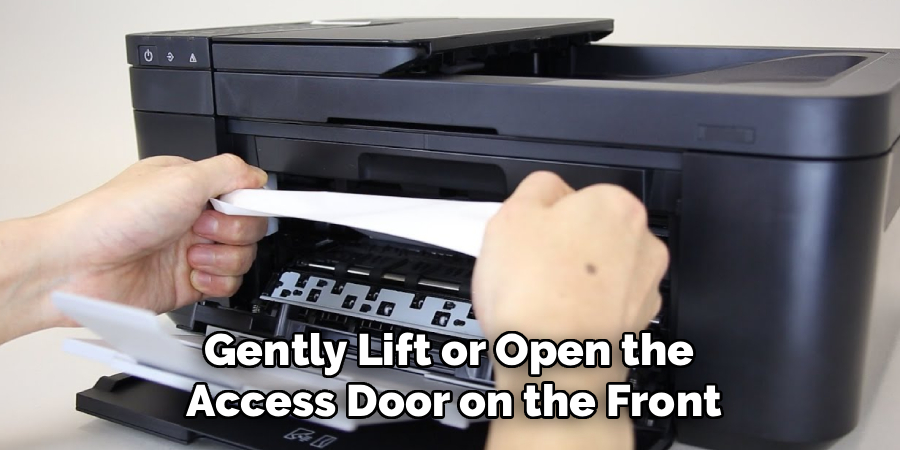
Shine your flashlight in and look closely. Sometimes the jammed sheet sits in plain view, crumpled near the rollers. Other times, only a sliver peeks out, and the rest hides deeper in the machine.
Take a slow, careful look before you grab anything. Note which direction the paper is feeding. Knowing that angle helps you pull it the right way later, which keeps the delicate parts safe from tearing.
Step 3 – Check the rear tray and feed rollers
Many jams start at the back. Walk around to the rear tray and lift its cover or remove the duplex unit if your model has one. This exposes the feed rollers that grip and pull each sheet forward.
Look for paper bunched up against these rollers. The surface should feel slightly rubbery and grippy. If it feels slick or dusty, that’s often why sheets slip and jam in the first place.
Use your flashlight to scan for stray debris, like a torn corner or a paperclip. Even tiny bits can throw off the whole paper path. Clearing the rear first often releases tension, making the main sheet much easier to remove from the front.
Step 4 – Pull the paper out slowly and evenly
Now for the satisfying part. Grip the jammed sheet firmly with both hands and pull it in the direction the paper normally travels. Move slowly and keep even pressure across the width of the page.
You’ll feel resistance, then a smooth release as it slides free. Resist the urge to jerk or yank. Fast pulls tear the paper and leave scraps behind that cause repeat jams.
If the sheet won’t budge one way, try easing it the opposite direction gently. Listen for any soft tearing sound, which tells you to stop and reposition your grip. The goal is one clean, continuous pull that removes the entire sheet without leaving anything behind in the cartridge area.
Step 5 – Remove any torn scraps or debris
Even a careful pull can leave little fragments wedged inside. This is where your tweezers earn their place. Shine the flashlight across the paper path and look for white flecks, folded corners, or dust clumps clinging to the rollers.
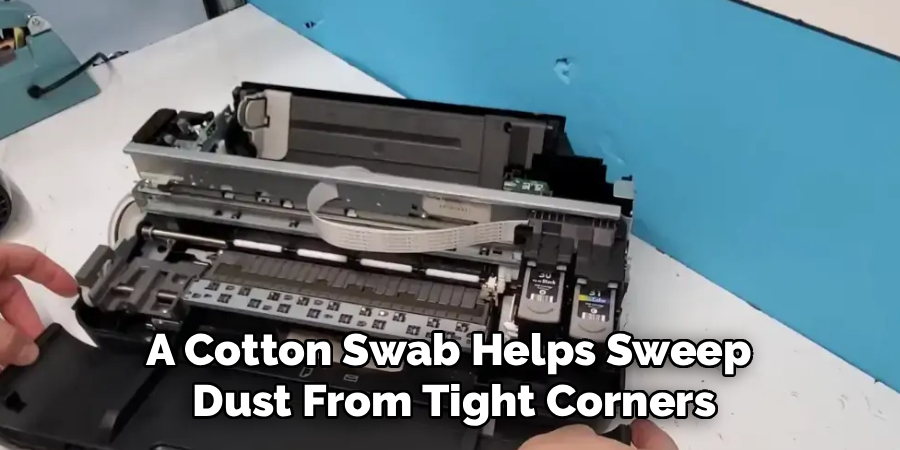
Reach in with the tweezers and pluck each piece out one by one. Work patiently, and avoid pushing scraps deeper into the machine. A cotton swab helps sweep dust from tight corners you can’t quite grip.
Run your fingertip lightly along the visible rollers to feel for stuck bits. Anything left behind will cause another jam the moment you start printing again. Knowing how to repair Canon printer paper jam problems fully means getting every last scrap out before you close things up.
Step 6 – Clean the rollers if they feel dirty
Dirty or glazed rollers are a sneaky cause of repeat jams. If yours felt slick earlier, now’s the time to clean them. Dampen your lint-free cloth with a little distilled water or isopropyl alcohol, then wipe each roller gently.
Rotate the roller slowly with your finger so you clean the full surface. You’ll notice the cloth picking up grayish residue, which is paper dust and ink buildup. That grime is exactly what makes sheets slip.
Let the rollers air-dry for a minute or two before moving on. They should feel tacky and grippy again once clean. This small habit dramatically improves how reliably your Canon grabs and feeds each page going forward.
Step 7 – Reload paper correctly and align the stack
Grab a small stack of fresh paper and fan it out with your thumb. This separates sheets that might cling together and feed two at once. Tap the stack on a flat surface so every edge lines up neatly.
Place it in the rear tray or cassette, and slide the paper guides snug against the sides. Not too tight, just enough to keep the stack straight. Crooked or loose paper is a leading cause of jams.
Make sure you don’t overfill the tray past the marked line. An overstuffed tray puts strain on the feed rollers and leads to misfeeds. A clean, aligned stack feeds smoothly and keeps your paper path clear.
Step 8 – Close everything, power on, and test
Close the access door and any rear panels until you hear them click into place. A panel left ajar will trigger an error and stop the printer from running. Double-check that nothing is sticking out.
Plug the printer back in and press the power button. Listen as the carriage resets and the rollers hum to life. If an error light still blinks, clear the print queue on your computer to remove any stuck jobs from the failed print.
Run a test page, like a simple document or the printer’s self-test. Watch the sheet feed through cleanly. When it lands in the output tray smooth and unwrinkled, you’ve successfully fixed the jam.
Critical Mistakes When Fixing a Canon Printer Paper Jam
The biggest mistake beginners make is pulling paper backward, against the natural feed direction. This forces the sheet over the rollers the wrong way and can bend internal parts or tear the page into stubborn scraps. Always pull in the direction the paper normally travels, and go slow.
Another common error is leaving the printer powered on during the repair. A live machine can suddenly spin its rollers or move the print head, catching your fingers or jamming the paper deeper. Unplugging takes two seconds and saves you real trouble.
Many people also rush the cleanup and miss tiny torn fragments hiding near the cartridge area. Those leftover bits trigger jam after jam, leaving you frustrated and convinced the printer is broken. Take time to inspect with a flashlight and remove every scrap.
Overfilling the rear tray ranks high on the list too. Cramming in too many sheets strains the feed rollers and causes constant misfeeds. Load a modest stack and keep the guides snug but not crushing.
Finally, forgetting to clear the print queue leaves old failed jobs lingering, so the printer keeps choking on a phantom task even after the paper path is clear.
Expert Tips
Keep your paper stored flat in a dry spot. Humidity makes sheets curl and stick together, which is one of the most overlooked causes of jams. A sealed container or drawer works wonders.
Clean your feed rollers every couple of months, even when nothing’s wrong. Regular wiping prevents the dust buildup that leads to slipping and misfeeds down the road.
Stick to the paper weight your Canon recommends. Thick cardstock or flimsy sheets outside the supported range stress the rollers and jam easily.
When a jam happens, resist panicking. Slow, deliberate movements beat fast yanks every time. And if your printer jams constantly despite clean rollers and good paper, the rollers may simply be worn out, a cheap and replaceable part on most models.
Frequently Asked Questions
Why does my Canon printer keep jamming even after I clear it?
Repeat jams usually mean something’s still wrong inside. Common culprits include:
- Tiny torn scraps left behind in the paper path
- Dirty or worn feed rollers that can’t grip properly
- Paper loaded crooked or stacked too high
Check each of these carefully. Clean the rollers, inspect with a flashlight, and reload a smaller, well-aligned stack. If jams continue, the rollers may need replacing.
Can I damage my printer by pulling the paper out?
Yes, if you do it wrong. Yanking paper backward against the feed direction can bend the rollers, scratch the cartridge area, or leave torn bits behind. Always pull slowly in the direction the paper normally moves, using even pressure with both hands. A calm, steady pull protects the delicate internal parts and removes the sheet in one clean piece without causing harm.
Do I need to unplug the printer before clearing a jam?
Absolutely. Unplugging the printer protects you from electric shock and stops the rollers from spinning unexpectedly while your hands are inside. It only takes a moment and removes any risk of injury or further damage. Never reach into a powered-on printer to clear paper, no matter how small the jam looks. Safety first, every single time.
How do I clear a phantom jam error when there’s no paper?
A phantom jam often means a sensor is blocked or the print queue is stuck. Open the access door and shine a flashlight along the paper path, looking for tiny debris or scraps near the sensors. Wipe away any dust. Then clear the print queue on your computer to delete the failed job. Restart the printer, and the error usually disappears.
How often should I clean my printer’s feed rollers?
Cleaning every two to three months keeps things running smoothly, especially if you print often. Use a lint-free cloth lightly dampened with distilled water or isopropyl alcohol, and wipe each roller gently while rotating it. This removes paper dust and ink residue that cause slipping. Regular cleaning prevents most jams before they start and extends the life of your printer.
Conclusion
Clearing a stuck sheet doesn’t have to feel intimidating. Once you’ve walked through the steps yourself, you’ll see how straightforward it really is. Power down, open the access door, find the jam, and pull the paper slowly in its natural direction. Remove every scrap, clean the rollers if they feel slick, reload a neat stack, and run a test page. That’s the whole process from start to finish.
The real secret to mastering how to repair Canon printer paper jam troubles is patience. Slow, careful movements protect your machine and save you from repeat headaches down the road. Pair that with a few prevention habits, like storing paper flat and cleaning the rollers regularly, and you’ll spend far less time dealing with jams at all.
You’ve got everything you need to handle this yourself, no technician required. The next time a sheet gets stuck, you’ll fix it in minutes and get right back to printing. Trust the steps, take your time, and enjoy the confidence that comes with solving the problem on your own.