

Are you staring at a blinking light on your portable drive, wondering how to repair external hard drive issues without losing your mind? You are certainly not alone.
External hard drives hold our most precious digital memories and important work files. When they stop working, panic usually sets in fast.
But do not rush out to spend hundreds of dollars on a technician just yet. Learning how to repair external hard drive glitches is easier than you might think.
Taking the DIY route can save you a significant amount of money. Plus, fixing it yourself gives you a great sense of accomplishment.
Grab a cup of coffee, take a deep breath, and let’s get that drive working again.
Understanding How to Repair External Hard Drive Issues
Before we start tinkering with cables and software, we need to know what went wrong. Hard drives are sensitive devices.
Sometimes the issue is physical, while other times it is purely a software glitch. Diagnosing the root cause is the first step in your repair journey.
We will walk through the most common culprits. This helps you narrow down exactly what is happening inside that plastic case.
What Causes This Problem?
Hard drive failures happen for a handful of very specific reasons. Here is what usually goes wrong:
- Damaged USB cables or ports: The connection between the drive and the computer gets bent, frayed, or worn out over time.
- Corrupted file systems: Unplugging the drive without safely ejecting it can scramble the data structure.
- Failed enclosure bridges: The internal connector that changes a standard hard drive into a USB drive shorts out.
- Physical impact damage: Dropping the drive can jam the read/write heads or scratch the internal platters.
- Malware or virus infections: Malicious software can lock you out of your own files and hide the drive.
- Natural wear and tear: Moving parts inside mechanical drives eventually give out after years of heavy use.
Tools & Materials Needed for the Fix
You do not need a specialized lab to handle basic drive repairs. A few common household items will do the trick.
Gather these items before we begin. Having everything within reach makes the process smooth and frustration-free.
- A brand new, high-quality USB cable that matches your drive.
- A secondary computer or laptop for testing.
- A small Phillips-head screwdriver (size #0 or #1).
- A plastic spudger or an old credit card for safely prying open plastic cases.
- A SATA-to-USB adapter cable (if you need to bypass the drive’s original case).
- Data recovery software installed on your computer (like Recuva or Disk Drill).
Step-by-Step Fix Guide: How to Repair External Hard Drive Safely
Ready to roll up your sleeves? Let’s dive into the actual repair process.
Follow these steps in order. We start with the easiest fixes and move toward more advanced physical repairs.
Step 1: Check Cables and Connections
The simplest solution is often the right one. Do not overlook the power and data cables.
Inspect your USB cable for any visible kinks, bends, or exposed wires.
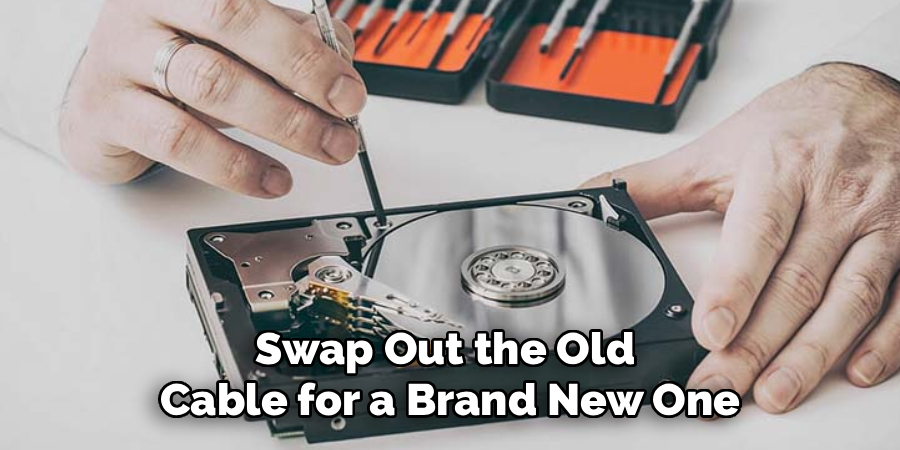
Swap out the old cable for a brand new one. Plug it directly into your computer.
Avoid using USB hubs or extension cables during this test. Hubs rarely provide enough power to spin up a damaged drive.
If the drive lights up and connects, you just saved yourself a massive headache.
Step 2: Try a Different Computer or Port
Sometimes the problem lies with your computer, not the external drive. USB ports can burn out or become disabled.
Unplug the drive and try a different port on the back of your computer. The rear ports connect directly to the motherboard and offer more stable power.
If that fails, plug the drive into a completely different laptop or desktop.
If the secondary computer reads the drive instantly, your original computer needs a driver update.
If the drive still fails to show up, it is time to dig a little deeper.
Step 3: Inspect Drive Status in Disk Management
Your computer might actually see the drive, even if it does not pop up on your screen. We need to check the background systems.
If you use Windows, right-click the Start button and select “Disk Management.”
Mac users should open “Disk Utility” from their Applications folder.
Look for your external drive in the list of connected devices. It might show up as “Unallocated Space” or “RAW.”
If you see it listed here, the drive physically works. You simply have a corrupted file system.
Step 4: Run Built-In Diagnostic Checks
We can use built-in system tools to repair corrupted software sectors. This requires no special technical skills.
On Windows, type “cmd” into your search bar. Right-click Command Prompt and run it as an administrator.
Type chkdsk X: /f (replace X with your drive letter) and press Enter. This tells Windows to find and fix file errors.
On a Mac, select your drive in Disk Utility and click the “First Aid” button.
Let the system run its scan. This process can take anywhere from a few minutes to a few hours.
Step 5: Update Your Device Drivers
Outdated drivers cause massive communication breakdowns between devices. A quick update can restore order.
Open the “Device Manager” on your Windows machine. Expand the “Disk drives” section.
Right-click your external drive and select “Update driver.”
Choose the option to search automatically for updated driver software.
Restart your computer once the update finishes. See if the drive mounts properly.
Step 6: Use Data Recovery Software
If the drive shows up as “RAW” or asks to be formatted, do not click format! Formatting wipes your data completely.
Instead, download a reputable data recovery program. Recuva, EaseUS, and Disk Drill are solid options.
Run the software and select your broken external drive. Choose the “Deep Scan” option.
The software will slowly read the drive and piece your files back together.
Save the recovered files to your computer’s main hard drive, not back onto the broken external drive.
Step 7: Remove the Drive from Its Enclosure
This is where the real DIY magic happens. Many “broken” external drives just have a fried USB connector inside the case.
Take your plastic spudger or old credit card. Gently wedge it into the seam of the plastic hard drive case.
Slowly pry the case apart. Be patient, as plastic clips can snap if you pull too hard.
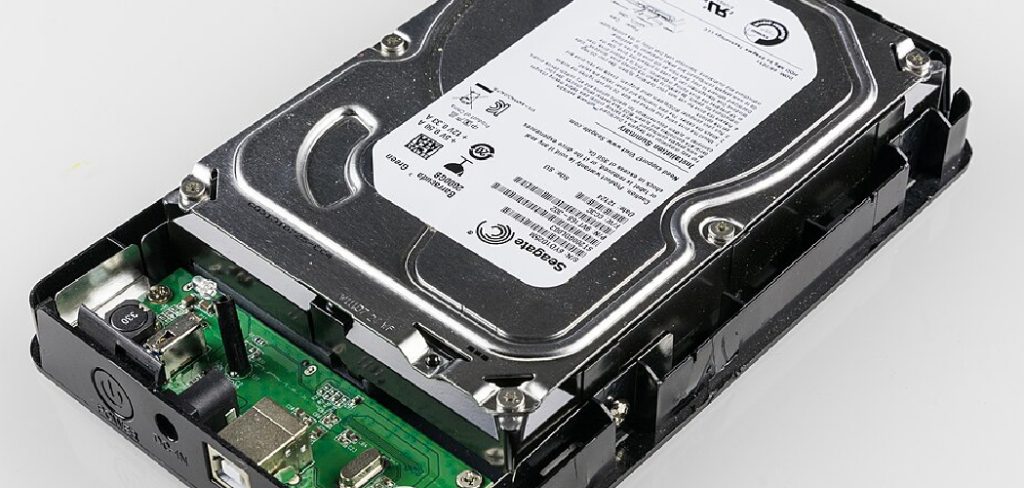
Once the case is open, you will see a standard internal hard drive connected to a small circuit board.
Use your screwdriver to remove this circuit board (the SATA-to-USB bridge).
Step 8: Test with a New SATA Cable
Now you hold a standard bare hard drive. We need to test if the drive itself still lives.
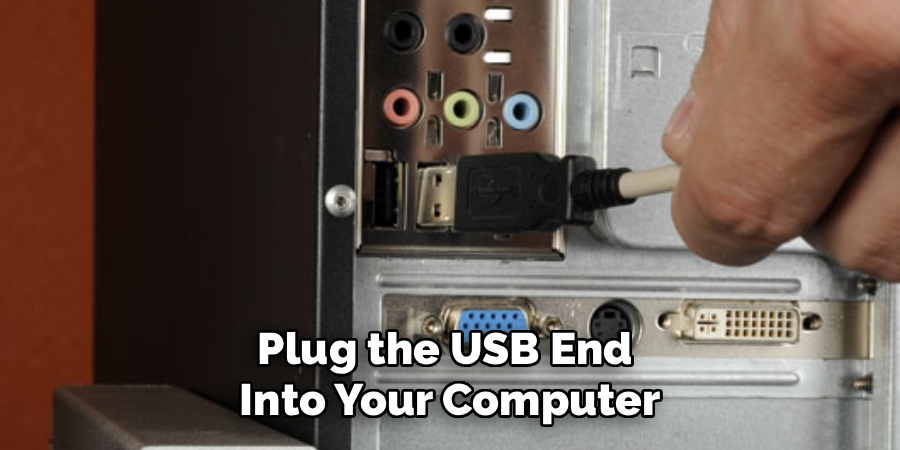
Take your new SATA-to-USB adapter cable. Plug the SATA end directly into the bare hard drive.
Plug the USB end into your computer.
Listen closely. Do you hear a smooth spinning hum?
If the drive pops up on your screen, congratulations! You just bypassed a dead enclosure and saved your data.
Step 9: Reformat for Future Use
Once you have safely copied all your recovered data to a new location, you can try to salvage the actual hardware.
Open Disk Management or Disk Utility again.
Right-click the problem drive and select “Format.” Choose exFAT or NTFS for the file system.
Formatting wipes the drive clean and rebuilds the digital filing system.
If the format completes successfully, you can use the drive again. However, never store critical, unbacked-up data on a drive that has failed once.
Crucial Safety Warnings
Working with electronics requires care and attention. Safety must always come first.
Never open the actual metal casing of the hard drive itself. Exposing the silver platters to regular room air will destroy your data instantly.
Only professional labs with sterile “clean rooms” should ever open the metal lid.
Always ground yourself before touching bare internal computer parts. Static electricity from your fingers can fry a circuit board.
Simply touch a metal table leg or wear an anti-static wristband before handling the bare drive.
Finally, if your drive is making loud clicking, grinding, or screeching noises, unplug it immediately. This indicates a severe physical crash.
When to Call a Professional
DIY repairs are incredibly rewarding, but every home technician has limits. Knowing when to stop is vital.
If you drop the drive and it makes rhythmic clicking sounds, no software will fix it. The internal reading arms are jammed.
If the drive suffered water damage or fire damage, do not attempt to plug it in. You will cause a short circuit.
If the drive contains highly sensitive business data or irreplaceable family photos, weigh the risks carefully.
When data loss is absolutely not an option, box up the drive. Send it to a certified data recovery specialist.
Cost Estimate: DIY vs. Pro
Let’s talk numbers. Repairing electronics yourself keeps cash in your wallet.
The DIY approach is incredibly budget-friendly. A new USB cable costs roughly $10 to $15.
A SATA-to-USB adapter will set you back about $20. Good data recovery software runs between $40 and $80.
Total DIY cost: $10 to $100 max.
Professional data recovery is a completely different financial ballpark. Technicians charge for specialized labor and sterile lab access.
Basic professional logical recovery starts around $300.
If they need to open the drive in a clean room, prices skyrocket. Expect to pay between $700 and $1,500.
Trying the DIY steps first is a no-brainer for your bank account.
Frequently Asked Questions (FAQs)
Can a totally dead external hard drive be fixed?
Yes, often the drive itself is fine, but the plastic enclosure or internal USB bridge has died. Removing the drive from the case and using a SATA adapter usually solves the problem entirely.
Why is my hard drive beeping or clicking?
Clicking or beeping indicates a mechanical failure, such as the read/write heads sticking to the platters. Unplug it immediately to prevent further damage, as this usually requires professional clean-room repair.
Does formatting an external hard drive fix it?
Formatting fixes logical errors and corrupted file systems, making the drive usable again. However, it erases all your data, so you must run data recovery software before you attempt a format.
How long do external hard drives normally last?
The average lifespan of a mechanical external hard drive is three to five years with regular use. You can extend this lifespan by keeping it cool, stationary, and always ejecting it safely from your computer.
Will putting my hard drive in the freezer fix it?
No. The “freezer trick” is an outdated myth from the 1990s that causes condensation to build up inside the drive. This moisture will permanently ruin your platters and destroy any chance of data recovery.
Conclusion
Figuring out how to repair external hard drive failures does not have to be a terrifying ordeal.
By taking it one logical step at a time, you can diagnose the problem and often recover your data right at your desk.
Remember to check your cables, utilize built-in computer diagnostics, and never be afraid to remove a faulty plastic enclosure.
You have the skills to handle these basic repairs and save yourself a massive technician bill.
If you found this guide helpful, be sure to bookmark our page for more practical DIY tech fixes.
Have a broken screen or a slow laptop? Check out our other step-by-step repair guides to keep all your gadgets running smoothly!