

Is your computer randomly shutting down, overheating, or refusing to boot entirely? You might have a processor issue on your hands.
Many people panic when their computer starts acting up. They assume a costly replacement is the only option.
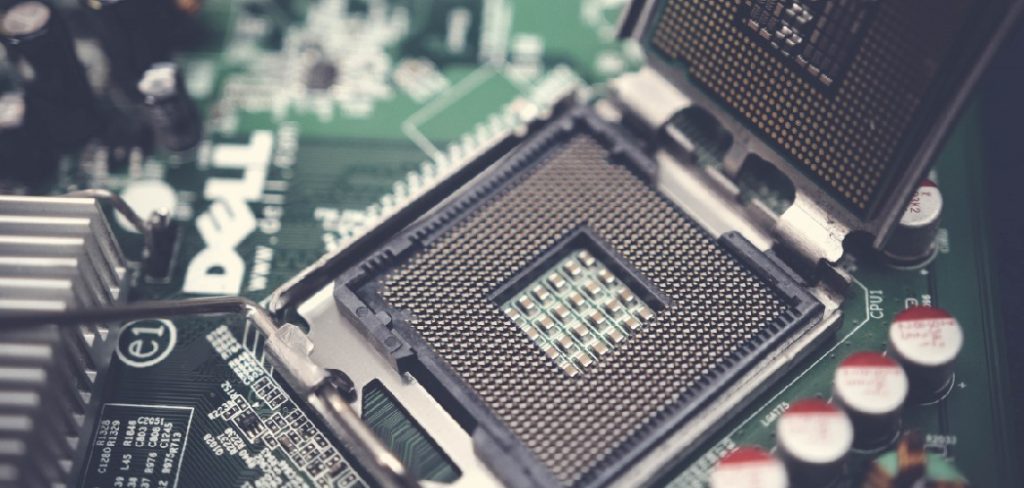
We have good news for you. Learning how to repair CPU problems is often easier than you think.
Fixing it yourself saves you a massive diagnostic fee at the repair shop. It also gets your computer back up and running much faster.
In this guide, we will walk you through the most common processor fixes. You can tackle these simple repairs right at your kitchen table.
What Causes This Problem?
Processor problems usually stem from physical handling mistakes or simple wear and tear. Here are the most common causes:
- Bent contact pins: Mishandling the processor during installation or removal can bend the delicate gold pins.
- Dried out thermal paste: The cooling paste degrades over time, leading to severe overheating.
- Improper seating: The chip might not be locked into the motherboard socket correctly.
- Dust and debris: Dirt blocking the cooling fan restricts airflow and traps heat against the processor.
- Cooler mounting pressure: An unevenly screwed down cooler can prevent the chip from making proper contact.
Tools & Materials Needed
Before we open up your computer, let’s gather our supplies. You only need a few basic items to complete this job.
- Anti-static wristband
- High-grade thermal paste
- 99% isopropyl rubbing alcohol
- Lint-free microfiber cloths or coffee filters
- A mechanical pencil (empty of lead) or a fine sewing needle
- A magnifying glass
- A bright desk lamp or flashlight
Preparing for Your Repair Project
Before touching any internal parts, you must eliminate static electricity. Static shocks can destroy sensitive computer components instantly.
Put on your anti-static wristband and clip it to unpainted metal. Make sure your computer is completely unplugged from the wall.
Hold the power button down for ten seconds to drain any leftover electricity.
Now, open your computer case and lay it flat on its side. Take a good look at the motherboard and locate the cooling fan sitting on top of the processor.
Step-by-Step Fix Guide
We will break this down into simple, manageable actions. Take your time and never force any parts together.
Step 1: Remove the Cooler and Processor
First, unplug the cooling fan’s small power cable from the motherboard.
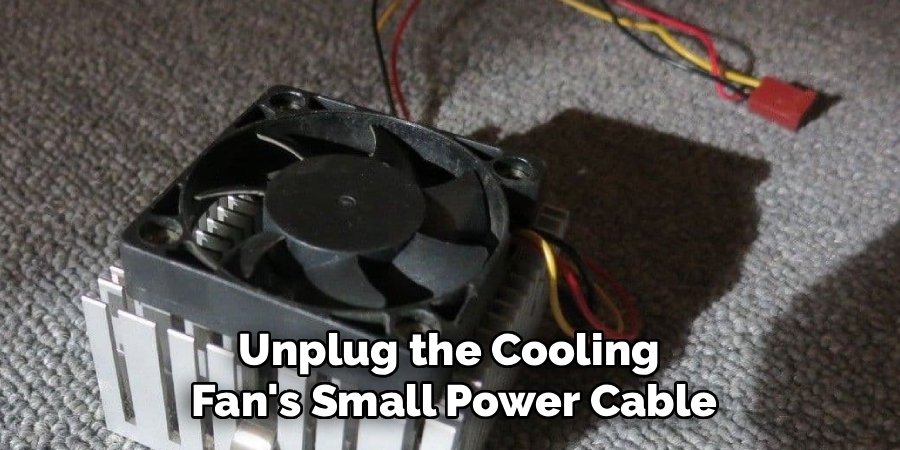
Unscrew or unclip the cooler from the motherboard. Lift the cooler straight up gently. If it feels stuck, give it a tiny, gentle twist to break the dried paste seal.
Lift the socket retention arm to release the processor. Carefully grab the processor by its edges and lift it straight up.
Step 2: Clean the Old Thermal Paste
You cannot apply new paste over the old, crusty layer. It creates air bubbles and traps heat.
Dab a small amount of isopropyl alcohol onto a coffee filter or microfiber cloth.
Gently wipe the top metal plate of the processor. Do the same for the bottom of the metal cooler you removed earlier.
Keep wiping until both metal surfaces are completely shiny and free of gray residue. Let them air dry for two minutes.
Understanding How to Repair CPU Bent Pins
Bent pins are a scary sight, but they are entirely fixable. You just need a steady hand and some patience.
Place the processor upside down under a bright light. Use your magnifying glass to inspect the rows of gold pins.
If you spot a pin leaning out of alignment, grab your empty mechanical pencil.
Carefully slide the tip of the mechanical pencil over the bent pin. Gently tilt the pencil to stand the pin back up perfectly straight.
Check your work from multiple angles to ensure the pin aligns with its neighbors.
Step 3: Reseating the Processor Correctly
Now that the pins are straight, you can put the chip back into the motherboard.
Look for a small gold triangle in one corner of the processor. Find the matching triangle engraved into the motherboard socket.
Line these two triangles up. Gently drop the processor directly down into the socket.
Do not push or press down on the chip. It should fall into place under its own weight.
Lower the metal retention arm and lock it into place to secure the chip.
Learning How to Repair CPU Cooling Issues
With the chip secured, we need to ensure it stays cool under heavy loads. Thermal paste is the secret to a happy processor.
Grab your tube of new thermal paste. Squeeze a single drop, roughly the size of a green pea, directly onto the center of the processor.
Do not spread the paste yourself. The pressure of the cooler will spread it perfectly.
Place the cooler straight down over the processor. Tighten the screws down in a crisscross pattern to ensure even pressure.
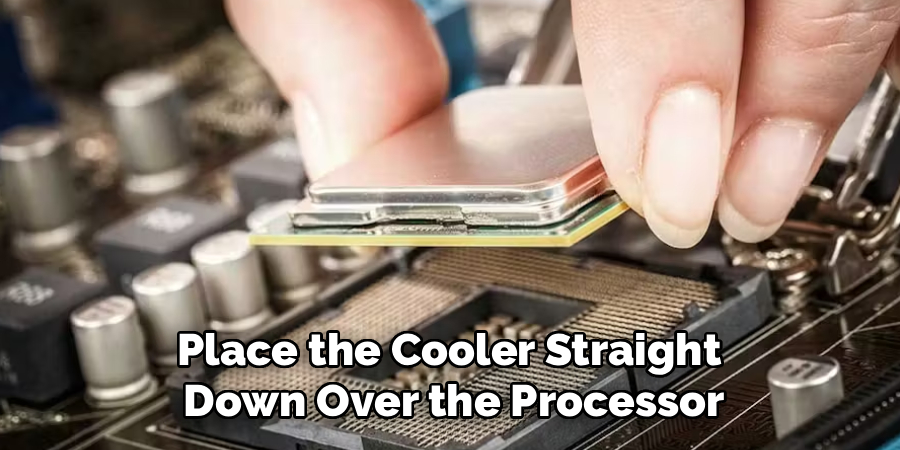
Finally, remember to plug the cooling fan cable back into the motherboard header.
Safety Warnings
Always handle processors by their edges. Never touch the gold contacts or pins on the bottom with your bare fingers.
The oils from your skin can cause corrosion and connectivity issues.
Do not use paper towels or tissues to clean thermal paste. They leave behind microscopic lint that causes heat buildup.
Never use excessive force when installing a processor. If it does not drop in easily, something is misaligned.
When to Call a Professional
DIY repairs are incredibly rewarding, but you need to know your limits.
If a pin snaps off entirely during straightening, you have a major hardware failure.
If you notice burnt, blackened marks on the motherboard socket or the chip itself, stop immediately.
When your computer still refuses to boot after checking the pins and replacing the paste, you might have a dead component.
At this stage, a professional diagnostic tool is required to test the motherboard power delivery.
Cost Estimate: DIY vs. Pro
Fixing this yourself is incredibly budget-friendly. A good tube of thermal paste and some isopropyl alcohol will cost you about $15 total.
If you take this to a repair shop, expect a steep bill. Most shops charge a minimum $75 to $100 diagnostic fee.
They will also mark up the cost of the thermal paste and charge you for labor time.
By following this guide, you save roughly $100 and learn a valuable new skill.
Frequently Asked Questions
Can a dead processor be revived?
If the internal silicon chip is cracked or burnt out, it cannot be fixed. However, if the issue is just overheating or bent exterior pins, it is highly repairable.
What is the best liquid to clean a processor?
Always use 99% isopropyl rubbing alcohol. It cuts through thermal grease easily and evaporates completely without leaving moisture behind.
How long does thermal paste last?
Most standard thermal pastes last between three to five years. If your computer runs loud and hot, it is usually time for a fresh application.
Will straightening a bent pin break it?
Pins are made of soft metals, so they can handle a gentle bend. However, bending them back and forth multiple times will cause them to snap.
Does a new motherboard fix processor problems?
If the processor itself has damaged internals or missing pins, a new motherboard will not help. You must isolate exactly which part is failing first.
Conclusion
Tackling computer hardware issues feels intimidating at first. But as you can see, understanding how to repair CPU problems mostly comes down to patience and care.
By fixing those bent pins and refreshing your thermal paste, you extend the life of your computer significantly. You just saved yourself a lot of money and a trip to the repair shop.
We hope this guide helped you restore your machine to perfect working order. Do not be afraid to tackle more home tech repairs as you build your confidence.
Ready to fix more electronics around the house? Check out our other step-by-step DIY hardware guides to keep all your devices running smoothly!