

Your laptop used to last all afternoon on a single charge, but now it dies before lunch. Sound familiar? A fading battery doesn’t always mean you need a costly trip to the repair shop. Learning how to repair a laptop battery can bring your machine back to life, save you money, and keep a perfectly good device out of the landfill.
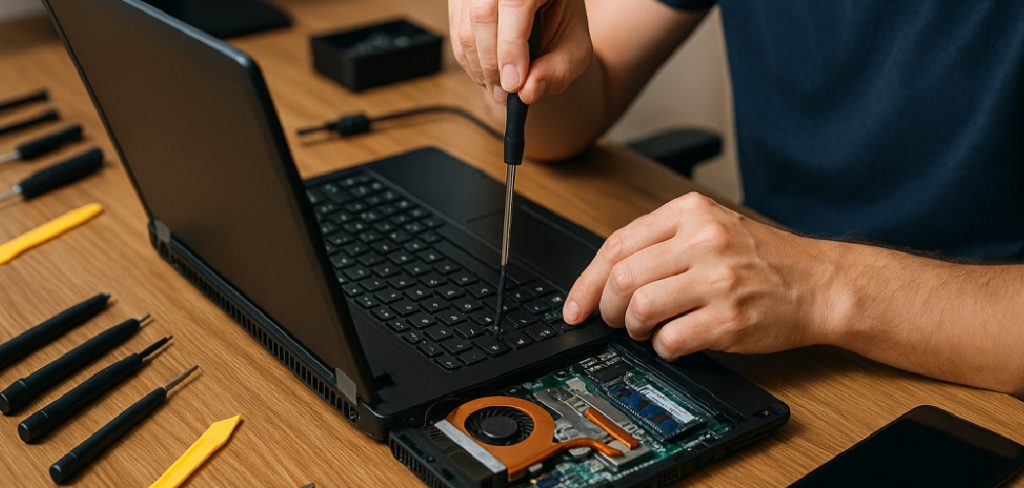
This guide walks you through the whole process in plain language, no technical degree required. You’ll learn how to spot problems, recalibrate cells, and decide when a fix makes sense versus a full swap. By the end, you’ll feel confident enough to tackle the job yourself. The purpose here is simple: to give you a clear, beginner-friendly roadmap for breathing new life into a tired laptop battery.
Why Repairing a Laptop Battery Matters
A healthy battery is the heart of any portable computer. When it weakens, you lose the freedom to work, browse, or watch movies away from an outlet. That tether to the wall defeats the whole point of owning a laptop.
Fixing the battery yourself puts you back in control. Instead of paying a technician $80 or more for a quick diagnostic, you can troubleshoot charging issues and improve battery health at your kitchen table. You’ll also learn how your machine actually works, which makes future problems far less intimidating.
There’s a bigger win, too. Every battery you repair or recalibrate is one less item tossed into the trash. That’s good for your wallet and kinder to the planet. A little know-how goes a long way.
Tools and Materials You’ll Need
You won’t need a fancy workbench to get started. Most of these items are probably already sitting in a drawer somewhere. First, grab a small Phillips and a flathead screwdriver, since laptop screws are tiny and sometimes hide under rubber feet. A plastic pry tool, or even an old guitar pick, helps you pop the case open without scratching anything.
Keep a soft microfiber cloth handy for wiping dust and a can of compressed air for clearing vents, which prevents overheating. You’ll also want your original power adapter to test charging and a multimeter to check voltage across the lithium-ion cell. A magnetic parts tray is the one optional convenience item I’d recommend, because nothing ruins an afternoon faster than losing a screw on the floor.
Step-by-Step Guide on How to Repair a Laptop Battery
Step 1 – Diagnose the Real Problem
Before you grab a screwdriver, figure out what’s actually wrong. Plug in your laptop and watch the charging indicator. Does it flicker, stay dark, or charge painfully slow?
Open your operating system’s battery report. On Windows, type a quick command to generate a battery health summary. On a Mac, check the cycle count under system settings. These numbers tell you whether the cells are simply tired or genuinely failing.
Listen and feel, too. A faint buzzing near the power adapter or a warm spot under the keyboard hints at charging issues rather than dead cells. Taking five minutes here saves you hours later. You can’t fix what you haven’t correctly identified, so be patient and thorough.
Step 2 – Power Down and Disconnect Everything
Safety comes first, always. Shut your laptop down completely, not just sleep mode. Then unplug the power adapter and remove any USB drives, headphones, or accessories.
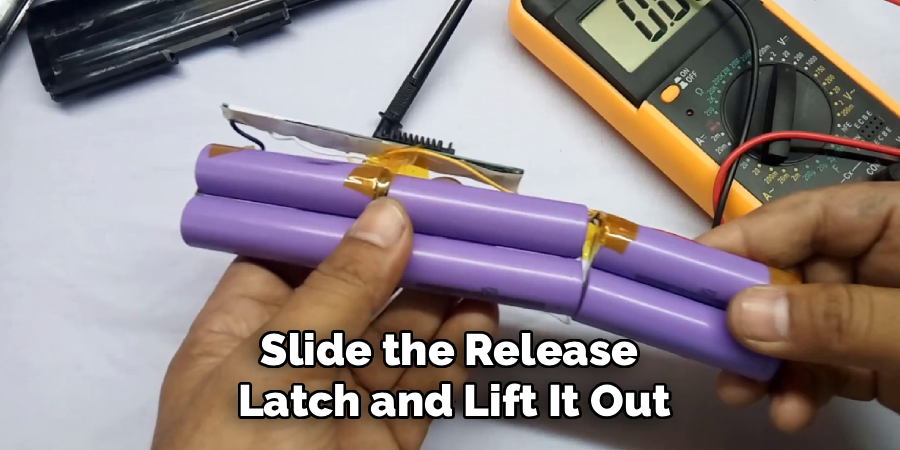
If your laptop has a removable battery, slide the release latch and lift it out. You’ll feel a satisfying little click. For sealed laptops, you’ll handle this after opening the case in a later step.
Touch a metal surface or wear an anti-static wrist strap before going further. Static electricity is invisible, but it can fry delicate components in a heartbeat. Set everything on a clean, dry, non-carpeted surface where you have room to spread out. Working in a calm, organized space keeps your nerves steady and your tiny screws from rolling away.
Step 3 – Inspect for Swelling and Damage
Now look closely at the battery itself. Run your fingertips gently across the surface. Does it feel flat and firm, or puffy and rounded?
Swelling is a serious red flag. A bloated lithium-ion cell can press against your keyboard or trackpad, and in rare cases it becomes a fire hazard. If you spot any bulging, stop and plan for a safe replacement pack instead of a repair.
Check for leaks, corrosion, or a chemical smell, too. These signs mean the cell is done. But if the battery looks clean and sits flat, you’re in good shape to continue. Knowing how to repair a laptop battery starts with honestly judging whether the cells can be saved at all.
Step 4 – Clean the Contacts and Connectors
Dirty contacts cause more charging problems than people realize. Over time, dust and oxidation build a thin film that blocks the flow of power.
Dip a cotton swab in a little isopropyl alcohol and gently wipe the metal battery contacts. You’ll often see a faint gray residue come off onto the swab. Let everything dry completely, which only takes a minute or two.
While you’re in there, blast the vents and fan with compressed air. Clogged vents trap heat, and overheating slowly cooks your battery’s lifespan. The short hiss of air and the tiny puff of dust feel oddly satisfying. Clean connectors mean a stronger, more reliable charge, so don’t skip this small but mighty step.
Step 5 – Recalibrate the Battery
Sometimes the battery is fine, but your laptop simply misreads its charge level. Battery calibration fixes that confusion.
Charge your laptop to a full 100 percent and leave it plugged in for two more hours. Then unplug it and use the machine normally until it drains completely and shuts off on its own. Let it rest, powered off, for about five hours.
Finally, charge it back to 100 percent without interruption. This full cycle resets the battery’s internal gauge so it reports accurate numbers again. You’ll often gain back what felt like lost runtime. Calibration won’t revive truly dead cells, but it works wonders on a battery that simply got its math wrong.
Step 6 – Update the BIOS and Power Settings
Software matters more than you’d think. Manufacturers regularly release BIOS updates that improve how your laptop manages charging and battery health.
Visit your laptop maker’s official support page, enter your model number, and download the latest BIOS update. Follow the instructions carefully and never interrupt the process. A botched BIOS flash can brick your machine, so keep it plugged into the power adapter the whole time.
While you’re at it, tweak your power settings. Lower your screen brightness, shorten the sleep timer, and enable battery saver mode. These small adjustments reduce strain on the cells. Updated firmware paired with smart settings often restores noticeable runtime without you ever opening the case again.
Step 7 – Replace Individual Cells (Advanced)
Feeling brave? Some battery packs let you swap out the worn lithium-ion cells inside. This step takes patience and a steady hand, so only attempt it if you’re comfortable.

Carefully open the battery casing with your plastic pry tool. Inside, you’ll find several cylindrical cells connected by thin metal strips. Use your multimeter to test each one and find the weak link.
Replacing cells requires matching voltage and capacity exactly, plus a spot welder for safe connections. Soldering directly onto cells is risky and generates damaging heat. If this sounds beyond your comfort zone, that’s completely okay. Many DIY fixes stop well before this point, and there’s no shame in choosing a ready-made replacement pack instead.
Step 8 – Reassemble and Test
You’re in the home stretch. Carefully reseat the battery, line up the connectors, and press until you feel that reassuring click. Replace the case panel and tighten each screw, but don’t overtighten or you’ll strip the threads.
Plug in the power adapter and power up. Watch the charging indicator and confirm it climbs steadily. Open your battery report once more and compare the numbers to your earlier reading.
Run the laptop on battery power for a while to test real-world performance. Does it hold a charge longer now? Does it stay cool to the touch? If yes, congratulations. You’ve just brought a struggling battery back to useful life with your own two hands.
Critical Mistakes When Repairing a Laptop Battery
The most common mistake is ignoring swelling. People notice a slightly puffy battery and keep using the laptop anyway. That gamble isn’t worth it. A swollen lithium-ion cell can rupture, leak, or even catch fire, so always treat bulging as a stop sign rather than a minor annoyance.
Another frequent error is forgetting static precautions. Skipping the wrist strap or grounding step feels harmless, but a single zap of static can quietly kill your motherboard. You won’t see or feel the damage until your laptop refuses to boot.
Many beginners also rush the BIOS update. Interrupting the process, letting the battery die mid-flash, or downloading the wrong file can permanently brick the machine. Slow down and double-check your model number first.
People often confuse calibration with repair, too. Recalibrating a battery resets the gauge, but it can’t revive cells that are genuinely worn out. Expecting miracles leads to frustration.
Finally, some folks force the case open with metal tools and crack the plastic or scratch components. Use a proper pry tool and gentle pressure instead.
Expert Tips
Want your battery to last even longer after your repair? Keep your laptop between 20 and 80 percent charge whenever possible. Living at the extremes wears cells out faster, so unplugging at full charge and recharging before zero makes a real difference.
Heat is the silent battery killer. Avoid using your laptop on a bed, blanket, or your lap for hours, since blocked vents trap warmth and accelerate overheating. A cheap cooling pad helps a lot.
Run a fresh battery calibration every couple of months to keep readings accurate. And store a spare power adapter at your desk so you’re never tempted to drain the battery completely just to find a charger. Small habits add up to years of extra life.
Frequently Asked Questions
Can a completely dead laptop battery be revived?
Sometimes, but it depends on why it died. If the battery simply over-discharged, a slow recharge and calibration may bring it back. However, if the lithium-ion cells have failed chemically or the battery is swollen, no amount of charging will help. In that case, your safest and most reliable option is a fresh replacement pack designed for your specific model.
How long should a laptop battery normally last?
Most laptop batteries last between two and four years, or roughly 300 to 500 full charge cycles. After that, you’ll notice shorter runtime and slower charging. Heat, frequent full discharges, and constant plugged-in use all shorten that lifespan. Good habits like moderate charging and proper ventilation can stretch your battery well past the average mark.
Is it safe to repair a swollen battery myself?
No. A swollen battery is genuinely dangerous and should never be punctured, squeezed, or forced back into shape. The pressure means the lithium-ion cell is degrading and could rupture or ignite. Power down your laptop, handle the battery gently, and recycle it at an approved drop-off location. Then install a proper replacement pack rather than attempting a risky repair.
Why does my laptop charge slowly or not at all?
Slow charging usually points to one of a few culprits:
- A dirty or loose connector blocking power flow
- A failing or underpowered power adapter
- Outdated BIOS or power management software
- Worn cells nearing the end of their life
Start by cleaning the contacts and testing a different adapter before assuming the battery itself has failed.
Will calibrating my battery improve its capacity?
Calibration won’t add physical capacity, but it often restores runtime you thought you’d lost. The process resets your laptop’s internal gauge so it reports the true charge level accurately. If your laptop suddenly shows wrong percentages or shuts down at 30 percent, a full battery calibration cycle frequently fixes that confusion within a single charge.
Conclusion
Bringing a tired battery back to life isn’t magic, and it isn’t only for tech experts. With a few basic tools, a careful eye, and a little patience, you can diagnose problems, clean contacts, recalibrate cells, and even swap a worn pack when needed. Along the way, you’ve learned to spot warning signs like swelling and overheating before they become real hazards.
The biggest takeaway? Start simple. Most charging issues clear up with cleaning, a battery calibration, or a quick BIOS update, long before you ever need to open the case. Knowing how to repair a laptop battery puts real power back in your hands, both literally and figuratively.
So don’t toss that struggling laptop just yet. Roll up your sleeves, follow these steps, and enjoy the satisfaction of fixing something with your own hands. You’ll save money, reduce waste, and gain confidence for your next DIY project. Your laptop, and your wallet, will thank you.