

You turn on your computer, ready to tackle the day, but nothing happens. Your screen goes black, or you see an error message telling you the drive cannot be found.
A failing solid-state drive can feel like a disaster. We store our family photos, tax documents, and favorite games on these tiny pieces of hardware.
If you are wondering how to repair a SSD, you have come to the right place. Many people assume a broken drive means they need to buy a brand-new computer.
That is simply not true. You can often fix these issues right at your kitchen table with a few basic tools.
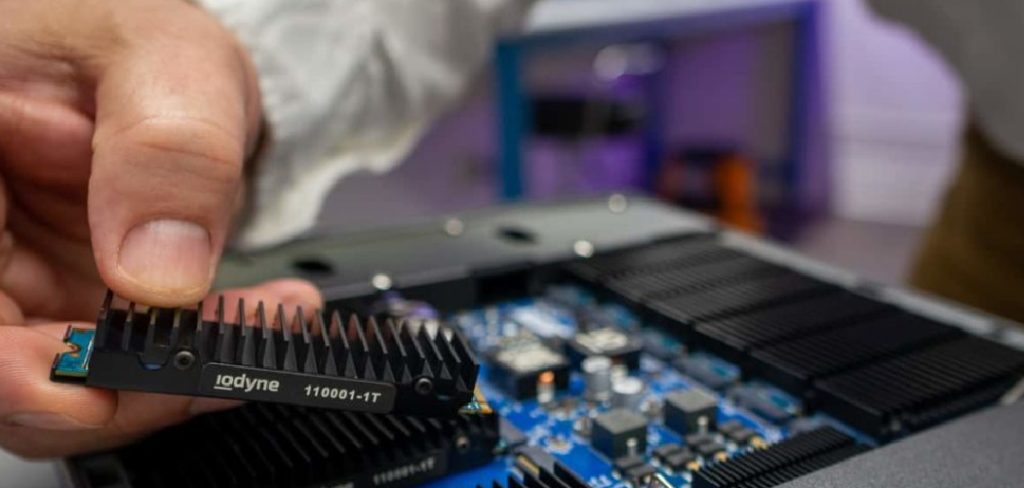
Fixing it yourself keeps your hard-earned money in your wallet. Professional technicians often charge hundreds of dollars just to look at your machine.
By following a few simple steps, you can breathe new life into your hardware. Let us grab some tools and figure out exactly what is going wrong with your drive.
What Causes This Problem?
Solid-state drives are incredibly durable because they have no moving parts. However, they are still electronic devices that can fail for several reasons.
Understanding what went wrong is the first step in learning how to repair a SSD. Here are the most common culprits behind drive failure:
- Unexpected Power Loss: A sudden power outage can corrupt the drive while it is writing information.
- Faulty Connections: A loose or damaged SATA cable can stop your drive from communicating with your motherboard.
- Outdated Software: A missing firmware update can cause your drive to glitch, freeze, or become unrecognized.
- Overheating: Poor airflow inside your computer case can literally bake the sensitive memory chips on the drive.
- Worn Out Memory Blocks: Flash memory has a limited lifespan, and eventually, the storage blocks lose their ability to hold data.
Tools & Materials Needed
Before we start tinkering, we need to gather our supplies. You do not need a fancy workshop to get this done.
Most of these items are already sitting in your garage or office desk. Here is exactly what you need to gather:
- A small Phillips-head screwdriver: You need this to open your computer case and remove the drive.
- An anti-static wrist strap: This protects the sensitive circuit boards from static electricity.
- A replacement SATA cable: We will use this to test if your current wire is broken.
- A USB flash drive: You need this to download and install a firmware update.
- An external hard drive enclosure: This helps us test the drive on a completely different computer.
- A clean, flat workspace: A kitchen table or clean desk works perfectly.
Step-by-Step Fix Guide How to Repair a SSD
Do not let the circuit boards intimidate you. We will take this one simple step at a time.
If you follow these instructions carefully, you will know exactly how to repair a SSD. Let us roll up our sleeves and get to work.
Step 1: Inspect and Replace the SATA Cable
The easiest fix is often the most overlooked. Sometimes the drive is perfectly fine, but the wire connecting it is broken.
First, completely power down your computer. Unplug the main power cord from the wall to ensure you are totally safe.
Open your computer case using your screwdriver. Locate the solid-state drive mounted inside the metal frame.
Check the flat wire connecting the drive to the main circuit board. Gently unplug this SATA cable and inspect the metal pins.
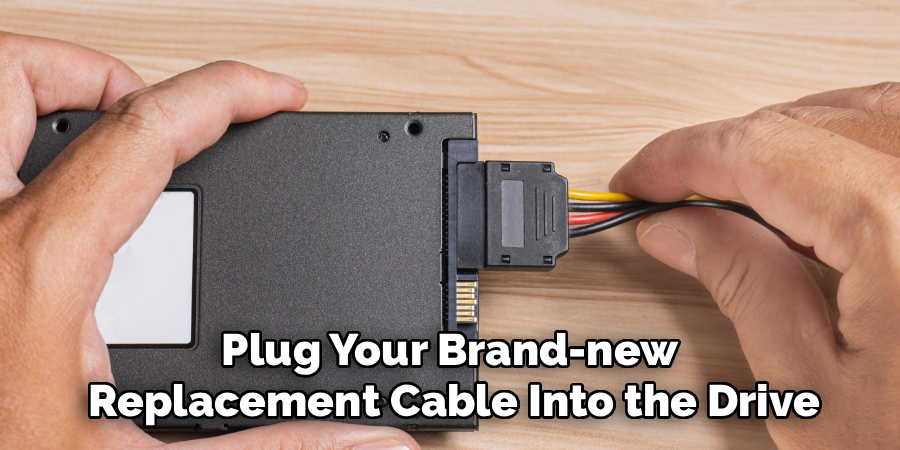
If the wire looks bent or damaged, toss it in the trash. Plug your brand-new replacement cable into the drive and the motherboard.
Plug the computer back into the wall and turn it on. If the computer boots up normally, you just fixed your problem for less than ten dollars!
Step 2: Try the Power Cycle Method
If the new cable did not work, the drive might be locked up due to a sudden power surge. We can reset it using a method called power cycling.
Turn off the computer and unplug it from the wall again. Open the case and find your drive.
Unplug the flat data cable from the drive, but leave the wider power cable plugged in. Turn the computer on and leave it running for exactly twenty minutes.
The drive will sit idle and run its own internal repair process. After twenty minutes, turn the computer off.
Unplug the power cable from the drive for thirty seconds. Plug the power cable back in, turn the computer on, and wait another twenty minutes.
Turn the computer off one last time. Plug the flat data cable back in, boot up the machine, and see if the drive appears on your screen.
Step 3: Run a Firmware Update
Sometimes the hardware is perfectly fine, but the internal software is confused. Manufacturers regularly release patches to fix bugs and improve performance.
You need to install a firmware update to get things running smoothly again. To do this, you will need a second, working computer.
Go to the website of the company that made your drive. Search for your specific model number and look for the support section.
Download the latest update file onto your empty USB flash drive. You will also need to download their diagnostic tool to run the installation.
Plug the USB into your broken computer and turn it on. Enter the basic startup menu and tell the computer to load from the USB drive.
Follow the simple instructions on the screen to install the fresh software onto your drive. Restart the computer and see if it recognizes your storage.
Step 4: Test with an External Enclosure
If the drive is still acting stubborn, your computer’s motherboard might be the actual problem. We need to isolate the drive to know for sure.
Take the drive completely out of your computer case. Slide the bare drive into your external hard drive enclosure.
This enclosure turns your internal drive into a portable USB drive. Plug the enclosure’s USB cord into a completely different laptop or desktop.
If the second computer recognizes the drive immediately, your data is safe! This means your original computer has a broken connection port.
If the second computer still cannot read the drive, the hardware itself is definitely failing. We now know the exact source of the problem.
Step 5: Format the Drive as a Last Resort
If the drive is recognized but you cannot access any files, the digital file system is corrupted. We can wipe the drive clean to make it usable again.
Warning: This step will erase absolutely everything on the disk. Only do this if you do not care about the files, or if you already have a backup.
Right-click on the start menu and open your disk management tool. Look for the black bar that says “unallocated space” or shows your corrupted drive.
Right-click that bar and select “Format” or “New Simple Volume.” Name the drive something simple and click next.

The computer will sweep the drive clean and rebuild the digital filing system. In a few minutes, you will have a blank, perfectly functioning drive ready for use.
Safety Warnings
Safety always comes first when dealing with electronics. Your computer holds electrical charges even after you unplug it from the wall.
Always press the power button a few times while it is unplugged to drain any leftover electricity. Never open the metal or plastic casing of the solid-state drive itself.
There are no parts inside that you can fix with normal tools. Opening the drive casing will void your warranty instantly.
Always wear your anti-static wrist strap when touching internal computer parts. A tiny spark from your finger can fry a motherboard instantly.
Finally, never forcefully pull on wires. If a plug feels stuck, look for a small metal latch that you need to press before pulling.
When to Call a Professional
DIY repairs are incredibly rewarding, but you need to know your limits. Sometimes a drive is too far gone for basic home fixes.
If your drive holds irreplaceable family memories or vital business documents, stop immediately. You need professional data recovery services before things get worse.
Data recovery experts work in special clean rooms and use advanced tools to extract your files safely. Running DIY software tools on a dying drive can destroy your data forever.
You should also call a pro if you see physical burn marks on the drive. If the plastic connectors are snapped off, a professional needs to solder them back together.
Do not feel bad about asking for help. Knowing when to step back is the mark of a smart homeowner.
Cost Estimate
Fixing things yourself is the ultimate way to save money. Let us break down the costs so you know what to expect.
A DIY repair is incredibly cheap. A new flat wire costs about five dollars at any electronics store.
An external enclosure for testing will cost you around twenty dollars. Software updates and power cycling cost absolutely nothing but your time.
Hiring a professional is an entirely different story. A basic diagnostic fee at a repair shop usually starts at around one hundred dollars.
If you need extensive data recovery, the price skyrockets. Professional lab recovery can cost anywhere from five hundred to two thousand dollars!
Clearly, trying these simple DIY steps first is well worth a Saturday afternoon.
FAQs on How to Repair a SSD
Can a dead solid-state drive be fixed?
It depends on what caused the failure. Software glitches and loose cables are very easy to fix at home. However, if the internal memory chips are physically burnt out, the drive cannot be repaired.
How do I know my drive is failing?
Your computer might freeze constantly, or take a very long time to save simple files. You might also see frequent “blue screen of death” error messages. Pay attention to files randomly disappearing from your folders.
Will I lose my files if I fix it myself?
Fixing a bad cable or doing a power cycle will not delete your files. However, formatting the drive will erase absolutely everything on it. Always make a copy of your important documents before trying advanced repairs.
How long do these drives usually last?
Under normal daily use, a high-quality drive will easily last five to ten years. Their lifespan is based on how much data you write to them over time. Keeping them cool inside your computer case helps them last even longer.
Conclusion on How to Repair a SSD
Dealing with computer hardware issues can be incredibly frustrating. However, a broken drive does not mean you have to throw away your entire machine.
Now you know exactly how to repair a SSD safely at home. By checking your cables, running a power cycle, and managing updates, you can solve most common issues.
Remember, taking the DIY route saves you hundreds of dollars in repair bills. You gain valuable skills and get the satisfaction of fixing something with your own two hands.
Do not let a small tech hiccup ruin your week. Grab your screwdriver, follow our steps, and get your computer running like new today!