

Is your computer suddenly freezing, crashing, or showing the dreaded Blue Screen of Death? You are not alone. Many people face these frustrating issues, and the culprit is often a simple memory problem. When your system memory acts up, it stops everything in its tracks.
The good news is that you do not always need a costly technician. Learning how to repair RAM issues at home is surprisingly easy. Fixing it yourself saves a significant amount of money and time. You will not have to lug your heavy computer to a repair shop.
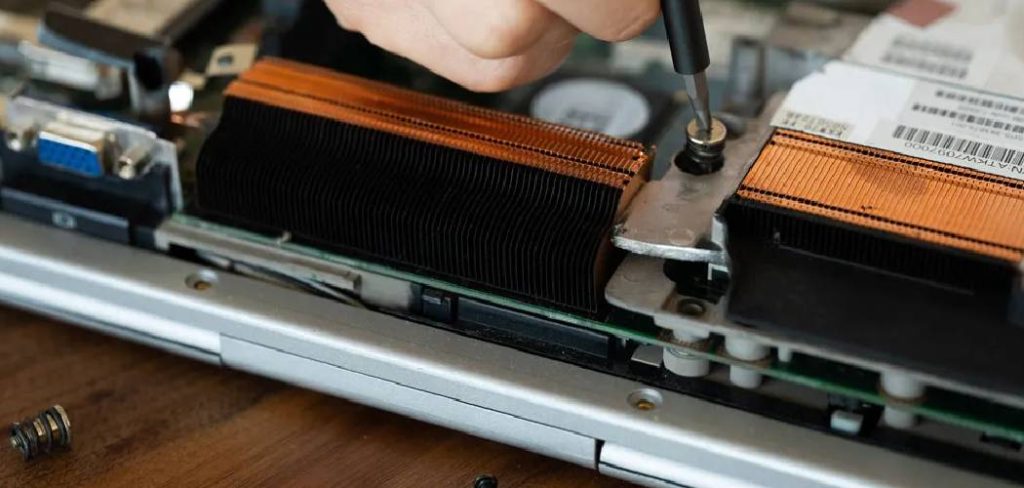
In this guide, we will walk through exactly how to diagnose, clean, and reseat your memory modules. Let us get your computer running smoothly again.
Understanding How to Repair RAM Issues
Before you grab your screwdriver, it helps to understand what is happening inside your machine. RAM (Random Access Memory) is your computer’s short-term memory. It holds all the data your system needs right this second.
When it fails or loses connection, the computer cannot process current tasks. This leads directly to system freezes or sudden reboots. By taking a few minutes to troubleshoot, you can easily restore your system’s performance.
Common Symptoms of Memory Failure
How do you know the memory is actually the problem? There are a few telltale signs. Your PC might beep repeatedly when you try to turn it on. This is a common motherboard warning sign.
You might also see corrupted files or experience random restarts during heavy tasks. If you notice these symptoms, it is time to take action.
What Causes This Problem?
Memory modules have no moving parts, making physical breakdowns rare. However, environmental factors and minor shifts cause major headaches.
Here are the most common reasons your memory might be failing:
- Dust Buildup: Dust sneaks into the slots and blocks the electrical connection.
- Loose Connections: Vibrations from typing or moving the PC can unseat the module.
- Oxidation: The gold contacts on the stick can tarnish over time.
- Improper BIOS Settings: Incorrect voltage or speed settings can cause instability.
- Failing Hardware: Sometimes, the memory chips naturally degrade over years of heavy use.
Tools & Materials Needed
You do not need an entire hardware store to fix this problem. A few household items will do the trick nicely.
Gather these items before you open your computer:
- A Phillips-head screwdriver: For opening your desktop computer case.
- An anti-static wristband: To prevent accidental electrical damage to your components.
- Isopropyl alcohol (90% or higher): For safely cleaning the electronic contacts.
- A clean microfiber cloth or cotton swabs: To gently wipe away dirt and grime.
- A can of compressed air: To blow dust out of the tight motherboard slots.
- A clean pencil eraser (optional): A classic trick for rubbing away stubborn oxidation on gold contacts.
Step-by-Step Guide on How to Repair RAM
Now it is time to roll up your sleeves. We will tackle this fix one simple step at a time.
Take your time and do not force any parts. PC components are delicate, but completely safe to handle if you are careful.
Step 1: Prepare Your Workspace and Power Down
Safety always comes first when working with electronics. Shut down your computer completely through the operating system. Flip the power switch on the back of the power supply to the “off” position. Unplug the main power cable from the wall.
Move your computer to a clean, well-lit table with a hard surface. Avoid working on carpet to reduce static electricity buildup. Put on your anti-static wristband and clip it to the metal frame of the PC case.
Step 2: Open Your Computer Case
Take your screwdriver and remove the screws holding the side panel in place. Usually, there are two screws on the back edge. Slide the side panel off gently and set it aside in a safe spot.
Look inside for long, rectangular sticks plugged directly into the motherboard. These are your memory modules. They are usually located right next to the large CPU cooling fan.
Step 3: Remove the Memory Modules
Look at the ends of the memory slots on the motherboard. You will see small plastic clips holding the sticks in place. Gently push down on the clips at both ends of the slot. You will hear a soft click as they disengage.
The stick should pop up slightly on its own. Grip the stick by its top edges and pull it straight out of the slot. Never grab the gold contacts at the bottom.
Step 4: Clean the RAM Contacts
Now we will perform the most important part of the fix. Take a close look at the gold pins along the bottom edge. Lightly dampen a cotton swab or microfiber cloth with isopropyl alcohol.
Gently wipe down both sides of the gold contacts. This removes invisible oils, dust, and oxidation. If the contacts look particularly dirty, gently rub them with a clean pencil eraser first. Brush away any leftover eraser shavings before using the alcohol.
Step 5: Clean the Motherboard Slots
The slots on the motherboard collect just as much dust as the sticks themselves. Take your can of compressed air and hold it completely upright.
Spray short bursts of air directly into the empty motherboard slots. This will blow out any hidden debris. Never stick cotton swabs or cloths down into the slots, as this can bend the fragile pins inside.
Step 6: Reseat the RAM Properly
Once the alcohol has dried completely, it is time to put everything back. Line up the small notch on the bottom of the memory stick with the ridge inside the slot. This ensures you do not put it in backwards.
Press the stick straight down into the slot using firm, even pressure on both ends. The plastic clips on the sides will automatically snap up and lock into place. You will hear a satisfying click when it is secure.
Step 7: Boot Up and Check BIOS Settings
Leave the side panel off for a moment and plug the power cable back in. Turn the computer on and watch the screen. If it boots up normally, you fixed the connection issue!
Restart the computer and press the “Delete” or “F2” key repeatedly to enter the BIOS menu. Look for the “Memory” or “XMP/DOCP” settings. Ensure your memory is running at its advertised speed and voltage. Sometimes, turning XMP off and running at default speeds fixes random crashes.
Step 8: Run Diagnostic Software
To be absolutely sure your fix worked, run a memory test. In Windows, click the Start menu, type “Windows Memory Diagnostic,” and hit enter.
Choose the option to restart and check for problems immediately. The computer will reboot into a blue screen and scan your system for errors. If it reports zero errors, your system is fully repaired and stable.
Essential Safety Warnings
Working inside a computer is highly rewarding, but requires a few simple precautions. Never work on a computer while it is plugged into the wall. You risk dangerous electric shocks and permanent damage to the machine.
Static electricity is the silent killer of computer parts. Always ground yourself before touching internal components. Never force a memory stick into a slot. If you have to push incredibly hard, it is likely facing the wrong way.
When to Call a Professional
DIY repairs are fantastic, but every home technician has their limits. If you notice visible burn marks on the memory stick, stop immediately.
If the plastic slot on the motherboard is physically cracked or missing pins, you cannot fix it with alcohol.
If you run the diagnostic tool and it constantly reports hardware errors despite cleaning, the stick is dead. At this point, you will need to buy replacement memory or consult a local repair shop.
DIY Cost Estimate vs. Professional Repair
Fixing a memory connection issue yourself is incredibly budget-friendly. A can of compressed air and some rubbing alcohol will cost you less than $15 combined.
Taking your PC to a professional shop tells a different financial story. Diagnostic fees alone typically run between $50 and $100.
If they clean and reseat the parts for you, expect a total bill of around $100 to $150. Spending twenty minutes doing it yourself leaves that money in your pocket.
Frequently Asked Questions
Can I mix different brands of memory?
It is not recommended. Mixing brands, speeds, or timings often causes system instability. Always buy memory in matched kits for the best performance.
Will I lose my files if I remove my memory?
No. RAM is volatile memory, meaning it only holds temporary data while the PC is on. Your personal files are safely stored on your hard drive or SSD.
How do I know if my memory stick is completely dead?
If you clean it, reseat it in a different slot, and the computer still fails to boot, it is likely dead. Running a tool like MemTest86 can confirm hardware failure.
Can I clean my computer parts with water?
Absolutely not. Water causes immediate short circuits and permanent corrosion. Only use 90% or higher isopropyl alcohol, which evaporates quickly and safely.
How often should I clean my computer’s internals?
For the best performance, open your case and blow out the dust every six months. If you have pets or keep your PC on the floor, aim for every three months.
Conclusion
Tackling a computer problem feels intimidating at first, but it does not have to be. By understanding how to repair RAM issues, you take control of your computer’s health. You also save a trip to the expensive repair shop.
Remember to take your time, ground yourself, and handle the parts gently. Cleaning the contacts and reseating the modules resolves the vast majority of random crashes and blue screens. Now that you know the steps, you can confidently maintain your own machine like a true pro.
Ready to tackle more easy DIY fixes? Browse our other repair guides to keep your entire home running smoothly!